


Job Levels & Career Paths
| Lines of Code | 2214 |
| Technical name | to_hr_employee_grade |
| License | OPL-1 |
| Website | https://viindoo.com/apps/modules/19.0/to_hr_employee_grade |
| Read description for | v 13.0 v 14.0 v 15.0 v 16.0 v 17.0 v 18.0 |
| Required Apps | Discuss (mail) Employees (hr) |
| Included Dependencies | Viindoo Base |
| Extensions | Competency Management Management Levels |
Describe every job once. Promote with a date.
For HR managers, CEOs and Odoo implementers building a clear career structure
Job families, tracks, levels and job codes, with every promotion kept by date.
Job Levels & Career Paths is an Odoo 19.0 app for Odoo Community and Odoo Enterprise.
Is this you?
The same job is described again for every department and every level.
The only way up for a specialist is to become a manager.
A promotion overwrites the old level, and nobody can tell when someone moved up.
Job titles differ from team to team, so exports and salary surveys never line up.
Employees and managers cannot see what the next career step looks like.
What changes
The same job is described again for every department and every level.
→ Describe each job once in a job profile, then reuse it in every department.
The only way up for a specialist is to become a manager.
→ Give specialists their own professional track next to the management track.
A promotion overwrites the old level, and nobody can tell when someone moved up.
→ Record each promotion as a dated entry and keep the full history, planned promotions included.
Job titles differ from team to team, so exports and salary surveys never line up.
→ Give every level a stable job code that exports and salary surveys can use.
Employees and managers cannot see what the next career step looks like.
→ Show the next career step and the time spent in the current level on each employee.
How it works
Build the structure
The HR manager sets up career tracks, levels, job families and job profiles once, then links each job position to a profile and a range of levels. The employee records go to the HR officer.
Assign and promote
The HR officer gives each employee a job profile level and records every promotion with its effective date. Employees and managers see the result.
Look up and plan
Employees and line managers read a colleague's level and job family on the public profile; HR officers see the next step and time in level.
Key Features
Career tracks and levels
Separate support, professional, management and executive ladders, order the steps of each, and give each level a management level.
Job families
Group similar jobs in families and family groups to compare and plan careers across departments.
Job profiles with job codes
Describe a job once and declare its levels, each with a stable job code for exports and salary surveys.
Positions tied to a profile
Tie each job position to one job profile and to the range of career levels expected from its employees.
Career step at a glance
See each employee's job level, next career step and time in the current level, with a warning when the level is outside the position range.
Dated promotion history
Keep every promotion with its effective date, planned promotions included.
Who it is for
CEO or HR director
Has no company-wide view of who holds which level. Gets one structure and a workforce counted by career level.
HR manager
Rewrites the same job for every department. Builds the structure once and keeps it in one place.
HR officer, line managers and employees
Promotions live in emails and files. Get dated promotions, the next step and the time in level on the employee record; colleagues see the level on the public profile.
Odoo implementer
Needs a structure that fits the client's own titles. Starts from four tracks and fourteen levels to rename, on Odoo Community or Enterprise.
Best for: companies that want one clear, company-wide job structure with a dated promotion history - from a team formalising its first levels to a group of companies sharing one ladder.
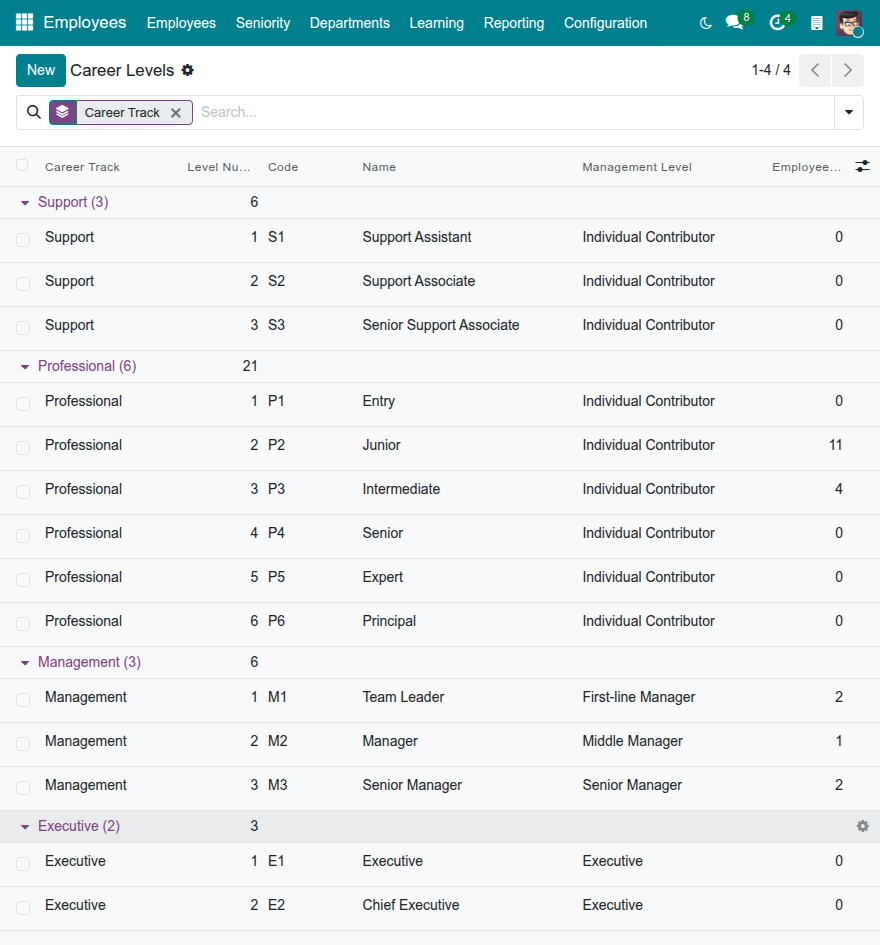
Lay out the career ladders
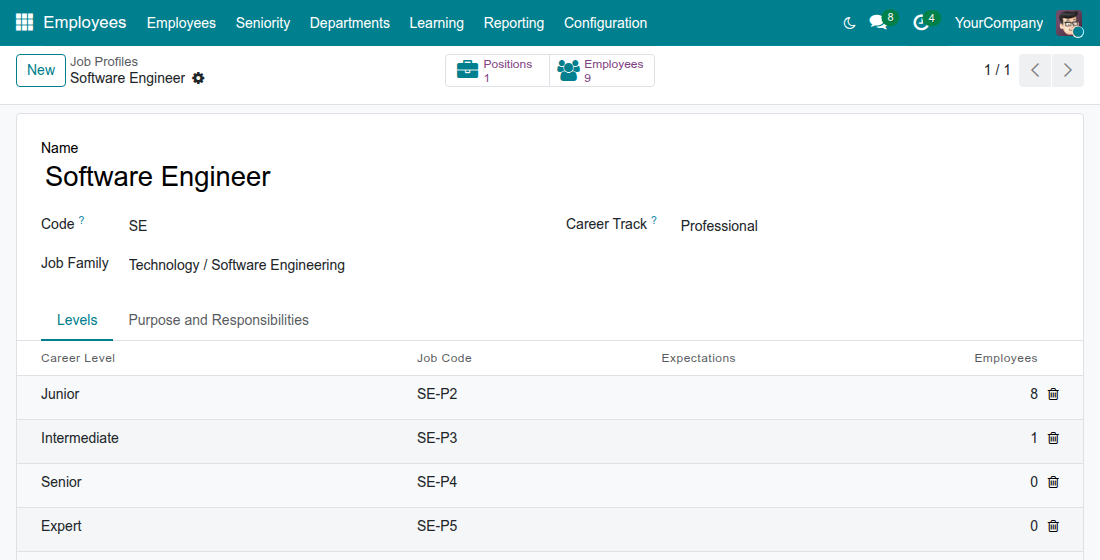
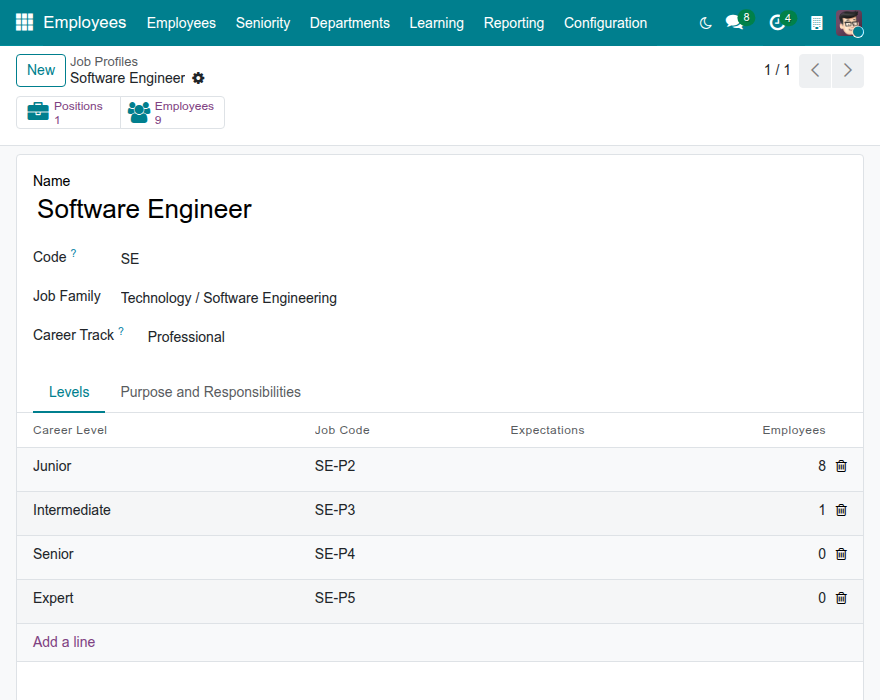
Describe a job once, with its levels and job codes
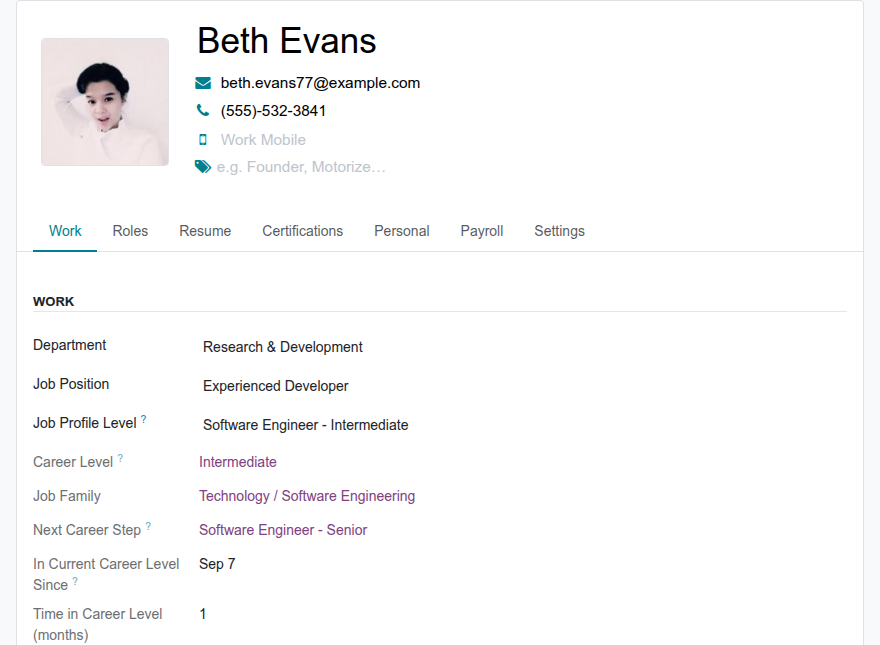
See each employee's career step
Keep every promotion with its date
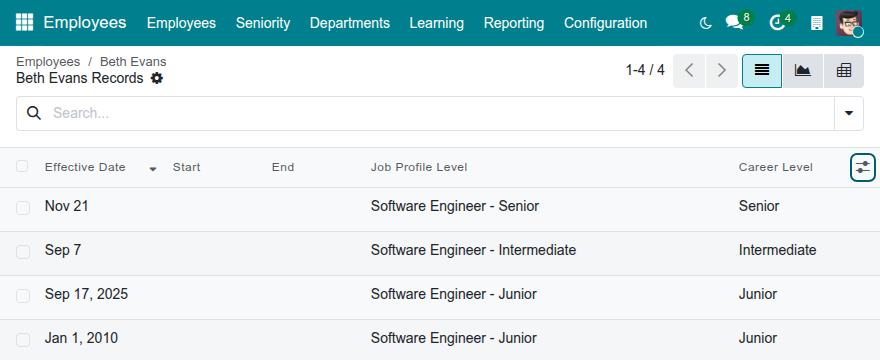
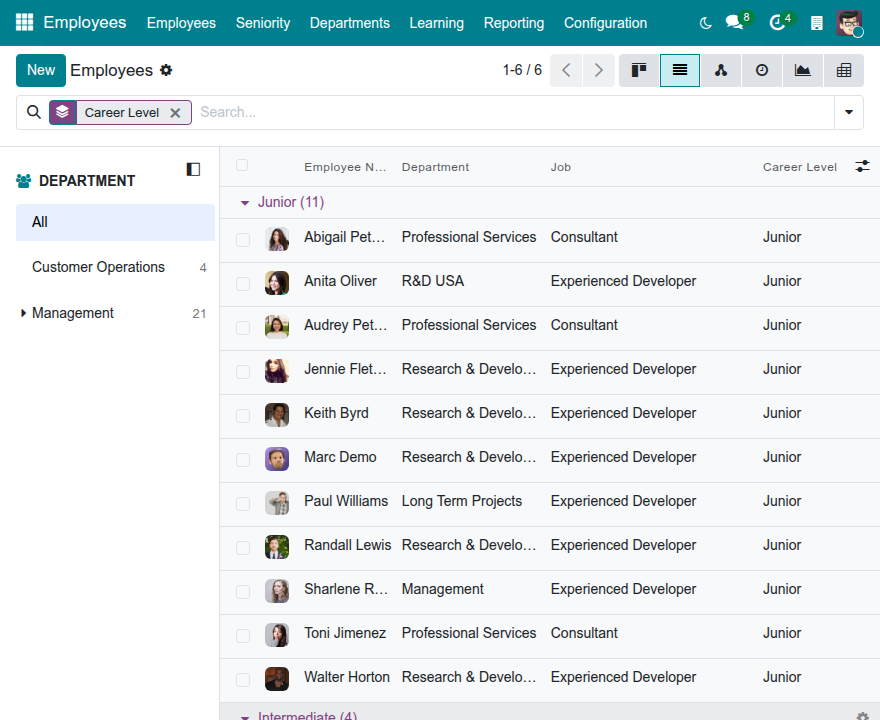
Count your workforce by career level
Frequently Asked Questions
Do we have to rebuild our job titles?
No. Four career tracks and fourteen levels come ready to use as a starting point. Rename them, add your own, or archive the ones you do not need.
Does it manage pay grades or salaries?
No. Every leveled job gets a stable job code that exports and salary surveys can use; pay is managed elsewhere.
Who can see career data?
Everyone can read the structure and see the job profile level, career level and job family of a colleague. Time in level, next step and out-of-range warnings are for HR officers.
Can a promotion be planned in advance?
Yes. Enter the promotion with a future date: the employee changes level on that date, and the history shows both entries.
Does it work with several companies?
Yes. Leave the company empty to share a record with every company, or set it to keep the record for one company.
Which Odoo editions does it support?
Odoo Community and Odoo Enterprise, version 19.0.
Need help with Job Levels & Career Paths?
Technical Support
Open a support ticketTechnical Requirement
- Odoo version: 19.0
- Editions: Odoo Community, Odoo Enterprise
- Required modules: Employees (hr), Viindoo Base (to_base)
- License: OPL-1
Job Levels & Career Paths
Note
Who this guide is for. HR managers and HR officers who set up and maintain the job structure of the company, and employees and line managers who want to look up the level of a colleague. Each chapter says which role it is written for.
Overview
Most companies describe the same job again and again: once per department, once per level, once per spreadsheet. Job Levels & Career Paths lets you describe every job once, give it a ladder of levels with a stable job code, and then assign a level to each employee with an effective date. A promotion is recorded as a new dated entry, so the career history of every employee is kept.
With the module you can:
- group similar jobs in job families (for example, Software Engineering inside Technology);
- separate career tracks - support, professional, management and executive - so that a specialist can progress without having to manage people;
- order the career levels of each track and give each level a management level;
- describe a job profile once and declare its levels, each with a job code that you can use in exports and salary surveys;
- tie each job position to one job profile and to the range of levels expected from its employees;
- see the next career step of each employee, the time spent in the current level, and whether the level is outside the range of the position.
The key terms
| Term | Meaning |
|---|---|
| Job Family | A group of jobs that do similar work, for example Software Engineering. A family can belong to a Job Family Group such as Technology. |
| Career Track | A ladder of levels. The module ships Support, Professional, Management and Executive. |
| Career Level | One step of a career track, with a level number (a higher number is a more senior level), a code such as P3 and a management level. |
| Job Profile | A job described once: its purpose, family and career track, whatever the department. |
| Job Profile Level | A job profile at one career level, for example "Software Engineer - Senior". It carries the Job Code. |
| Job Code | The stable key of a leveled job, for example SE-P4. By default it is the code of the profile followed by the code of the level. |
| Job Position | The seat of an employee in a department, as in the Employees app. A position is linked to one job profile. |
How the work flows
Typically, the work goes through three hand-offs:
- The HR manager builds the structure once: tracks, levels, families, job profiles and the link of each position to a profile.
- The HR officer gives each employee a job profile level and records each promotion with its effective date.
- Employees and line managers read the result on the profile of a colleague.
Who does what
| Role | What they do | Access right to assign |
|---|---|---|
| HR manager | Builds and maintains the job structure: job families, career tracks, career levels, job profiles and the range of levels of each position. | Employees / Administrator |
| HR officer | Sets the job profile level of each employee, records promotions and finds employees by level. | Employees / Officer: Manage all employees |
| Employee and line manager | Looks up the job profile level, career level and job family of a colleague. | None beyond the internal user access right |
Setup (for the Administrator)
Install the module
- Open Apps.
- Remove the default Apps filter in the search box and type Job Levels & Career Paths.
- Click Install on the Job Levels & Career Paths card.
The Employees app is required; it is installed with the module if it is not there yet.
Give each person their access right
- Open Settings ‣ Users & Companies ‣ Users and open the user.
- In the Access Rights tab, set Employees to the right of the table above: Administrator for the HR manager, Officer: Manage all employees for the HR officer.
- Save.
Every internal user can read the job structure without any further right.
Note
The Configuration menu of the Employees app, where the job structure is maintained, is shown to the Administrator access right only.
HR manager: build the job structure
The four screens of the job structure are in the Employee section of the Configuration menu. Job positions are in the Recruitment section of the same menu.
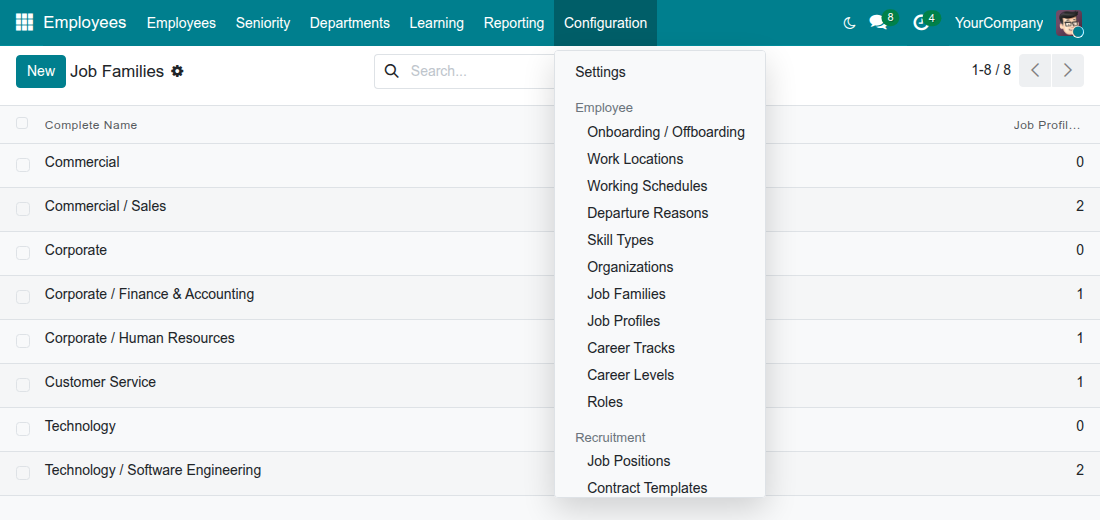
Review the career tracks
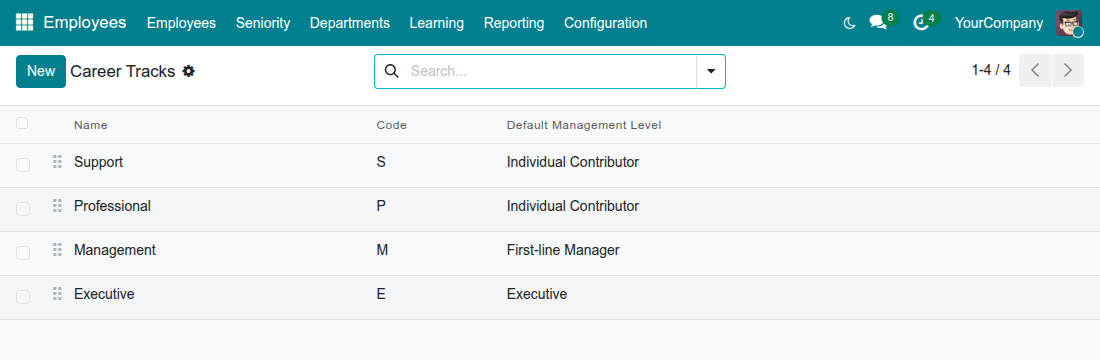
A career track is a ladder. The module ships four of them, ready to use: Support, Professional, Management and Executive. Each track has a code and a default management level that is given to the levels created in it.
- Open Employees ‣ Configuration ‣ Employee ‣ Career Tracks.
- To add a ladder, click New, fill in Name, Code and Default Management Level, then save. Drag the handle at the start of a row to change the order of the tracks.
The code of a track must be unique in a company.
Order the career levels
Career levels are the steps of a track. The module ships levels such as Entry, Junior, Intermediate, Senior, Expert and Principal on the professional track, Team Leader, Manager and Senior Manager on the management track, and Executive and Chief Executive on the executive track. Rename them to the words your company uses.
- Open Employees ‣ Configuration ‣ Employee ‣ Career Levels. The list is grouped by career track.
- To add a level, click New.
- Fill in the Name and select the Career Track.
- Enter the Level Number: the position of the level in the track. A higher number is a more senior level, and a track cannot hold two levels with the same number.
- Enter the Code, for example P3. The code must be unique in a company.
- Check the Management Level: Individual Contributor, First-line Manager, Middle Manager, Senior Manager or Executive. It is proposed from the default of the track and you can change it for one level.
- Save.
The Employees button of a level opens the employees who hold it.
Organise the job families
A job family groups the job profiles that do similar work. Families have two levels at most: a Job Family Group (for example Technology) and the Job Families inside it (for example Software Engineering).
- Open Employees ‣ Configuration ‣ Employee ‣ Job Families.
- To create a group, click New, type the Name and save.
- To create a family, click New, type the Name and select the Job Family Group.
- Leave Code empty: it is derived from the name. Type a code if you prefer your own.
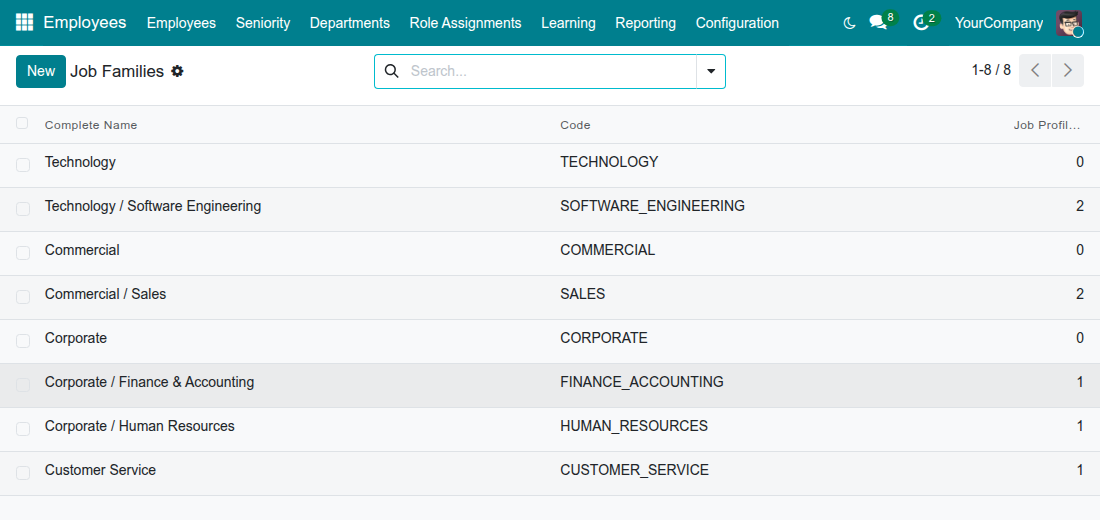
The list shows the family together with its group, for example "Technology / Software Engineering", and the number of job profiles it holds. The Job Profiles button of a family opens them.
Describe a job once: the job profile
A job profile describes a job whatever the department and the level. Its levels are taken from one career track, and each level has a job code.
- Open Employees ‣ Configuration ‣ Employee ‣ Job Profiles.
- Click New and type the Name, for example Software Engineer.
- Select the Job Family and the Career Track.
- Leave Code empty to have it derived from the name, or type your own, for example SE.
- In the Levels tab, click Add a line, then select a Career Level. Only the levels of the track of the profile are proposed. The Job Code is the code of the profile followed by the code of the level, for example SE-P4.
- Repeat for each level that the job really has. Describe what is expected at a level in the Expectations column.
- In the Purpose and Responsibilities tab, describe the job.
- Save.
Note
- Create only the levels that the job really has. Saving a position never creates a level for you.
- A profile cannot hold the same career level twice, and its career track cannot change while it has levels of another track.
- The job code is built for you, and must be unique in a company.
- The Positions and Employees buttons of a profile open the positions linked to it and the employees who hold one of its levels.
Link a job position to a profile
The job position is the seat in a department. Linking it to a profile tells the Employees app which levels an employee of the position can hold.
- Open Employees ‣ Configuration ‣ Recruitment ‣ Job Positions and open a position.
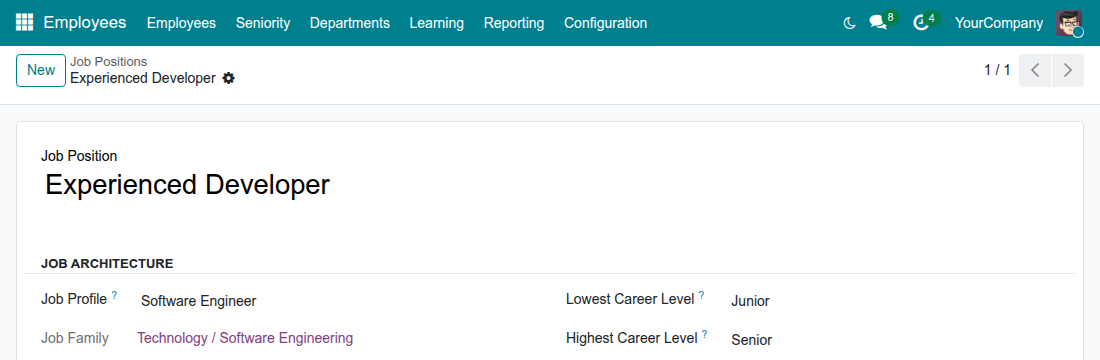
- In the Job Architecture group, select the Job Profile. The Job Family is shown from the profile.
- Select the Lowest Career Level and the Highest Career Level expected from an employee of the position. Both are taken from the career track of the profile.
- Save.
Note
- The lowest level cannot be above the highest level, and the profile must have at least one level inside the range.
- The profile of a position cannot be changed while current or future employee entries hold a level of another profile.
- With the Recruitment app installed, job positions are edited by users with the Officer right of Recruitment.
- A new employee of the position is given the lowest level of the profile inside the range.
HR officer: assign levels and follow careers
Give an employee a job profile level
- Open Employees ‣ Employees and open the employee.
- In the Work tab, check the Job Position.
- Select the Job Profile Level, for example "Software Engineer - Intermediate". If the position is linked to a profile, the level is proposed for you and only the levels of that profile can be selected.
- Save.
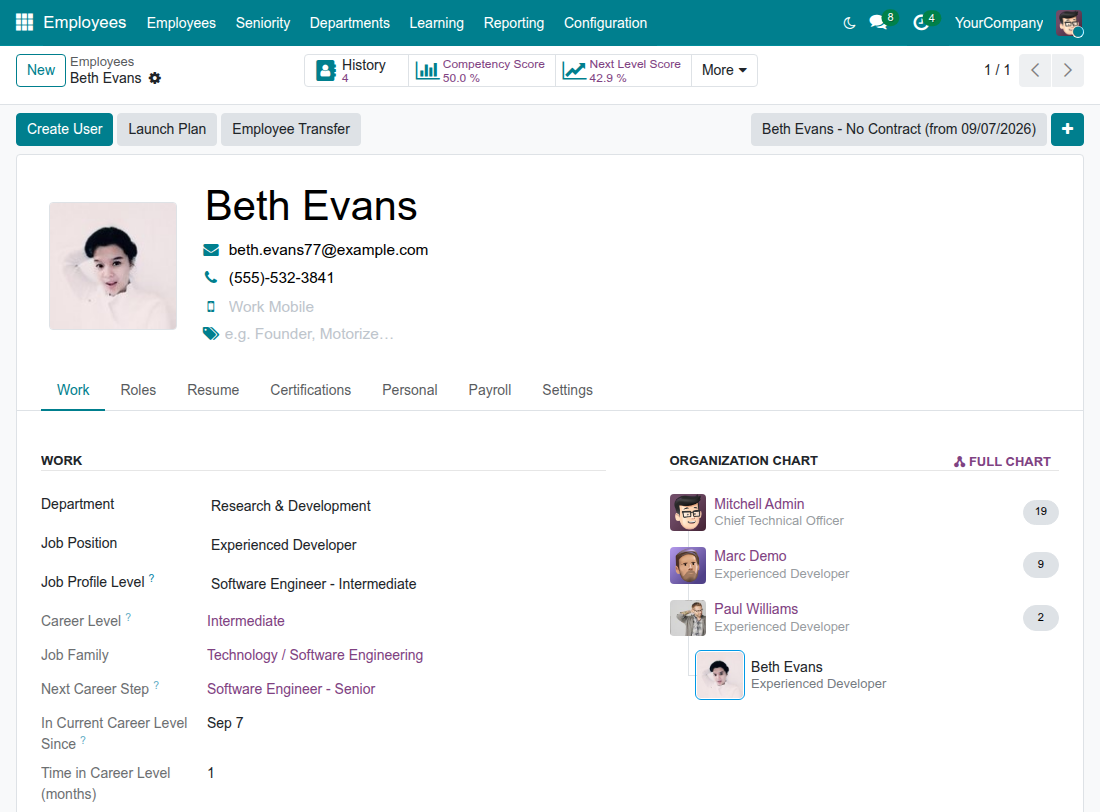
The other fields follow from the level:
- Career Level and Job Family are filled in from the level. Without a job profile level, you can select the Career Level directly.
- Next Career Step shows the next level of the same profile. It is empty at the highest level.
- In Current Career Level Since and Time in Career Level (months) show how long the employee has held the current career level, counting the uninterrupted dated entries that hold it.
- Out of Position Range appears in orange when the level is outside the range of the position. The employee can still hold the level: the warning tells you to look at it.
When you change the Job Position, the level can change with it. A warning then tells you which level the employee moves from and to; check it before you save.
Record a promotion
A promotion is a new dated entry of the employee, so the previous level and its dates stay in the history.
- Open the employee.
- Click the + button next to the version selector at the top right of the form. A calendar opens.
- Select the date from which the promotion applies. A date in the future records a planned promotion.
- In the Work tab, select the new Job Profile Level, for example "Software Engineer - Senior".
- Save.
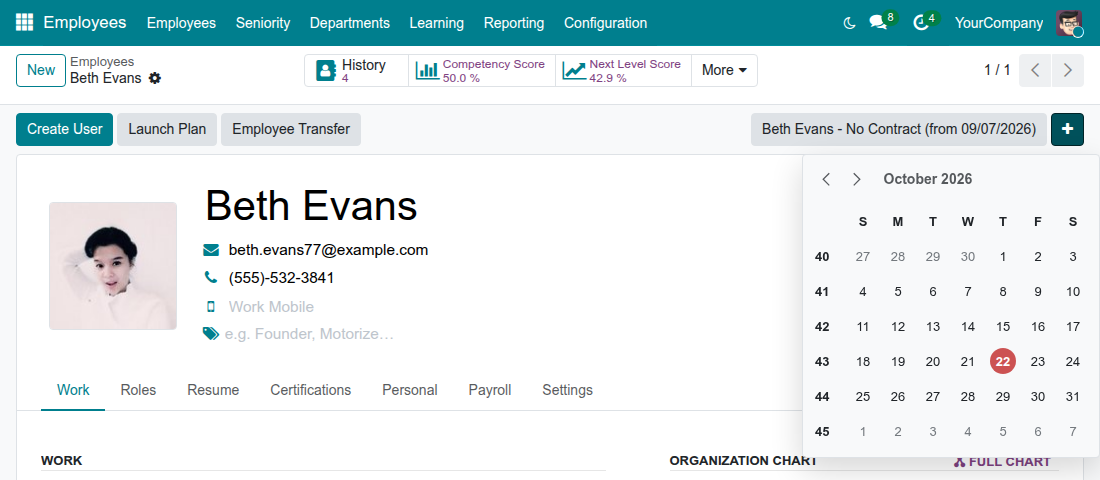
To review the career of the employee, click the History button at the top of the form. The list shows every entry with its effective date, job position, job profile level and career level.
Find employees by level
- Open Employees ‣ Employees and switch to the list view.
- Click the arrow of the search box. Under Group By, select Job Family, Job Profile or Career Level.
- To filter instead, type in the search box and select Job Profile, Career Level or Job Family in the proposed lines.
The list has a Career Level column, and an optional Job Profile column that you can show from the column selector at the end of the header.
Employee and line manager: look up a level
Everyone can see the level of a colleague on the public profile, without access to the other HR data of the person.
- Open Employees ‣ Directory and open a colleague.
- In the Work tab, read the Job Profile Level, Career Level and Job Family.
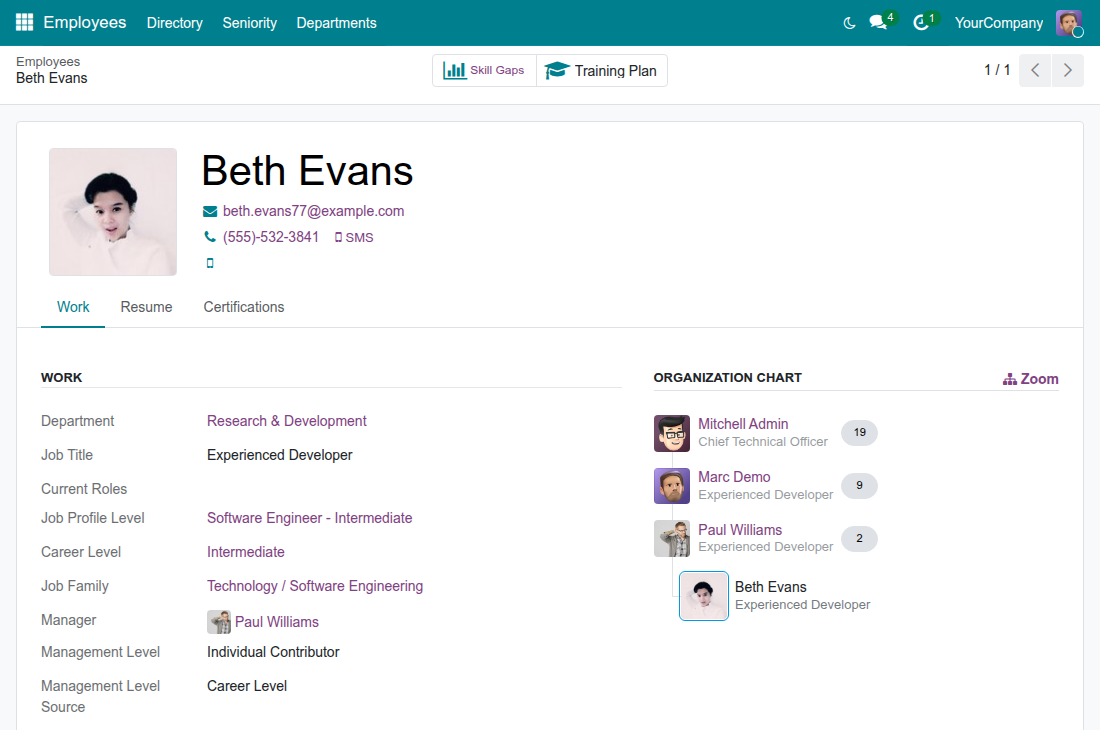
The time in the level, the next career step and the out-of-range warning are for HR officers only. To filter the directory, search by Job Profile, Career Level or Job Family.
Troubleshooting
| What you see | What to do |
|---|---|
| The Configuration menu, or the job structure screens, are not visible. | Ask the administrator for the Administrator access right on Employees. |
| "The job profile level ... does not belong to the job profile ... of the position ..." | The level you selected belongs to another profile than the one of the position. Select a level of the profile of the position, or change the profile of the position. |
| "The career level ... does not belong to the career track of the job profile ..." | Select a level of the track of the profile, or change the track of the profile first. |
| "A job profile cannot have the same career level twice." | The profile already has that level. Edit the existing line instead. |
| "A career track cannot hold two career levels with the same level number." | Give the level a number that no other level of the track has. |
| "The job code must be unique per company." or "The code of a ... must be unique per company." | Another record of the same company already uses that code. Type a different code. |
| "Job families have two levels at most: a job family group and the job families inside it." | Choose a job family group that is not itself inside another group. |
| "The lowest career level of the position ... cannot be above its highest career level." | Swap or correct the two levels of the range. |
| "The job profile ... has no level inside the career level range of the position ..." | Add a level to the profile inside the range, or widen the range. |
| "The job profile of the position ... cannot change: ... employee versions hold a level of another job profile." | Employees still hold a level of the old profile. Move them to a level of the new profile first, from the date you need. |
| The Next Career Step is empty. | The employee holds the highest level of the profile, or has no job profile level. |
| The level proposed on the employee is not the one you expected. | It is the lowest level of the profile inside the range of the position, unless the employee already held a level of the same profile in an earlier entry. |
FAQ
- What is the difference between a job position and a job profile?
- The position is a seat in a department, with its own recruitment target. The profile describes the job itself - purpose, family, track and levels - and is shared by every position that does that job.
- Why is a promotion a new entry and not an edit of the level?
- So that the history is kept: each level has its effective date, a planned promotion can be entered in advance, and the time in the current level is computed from the dates.
- Can an employee hold a level outside the range of the position?
- Yes. The level is saved and the Out of Position Range warning is shown to HR officers.
- Can I use my own names for the levels and tracks?
- Yes. Names, codes and descriptions are yours to edit, and the names can be translated.
- Does the module hold pay ranges?
- No. The job code is a stable key that exports and salary surveys can use; pay is managed elsewhere.
- Are levels created when I save a position?
- Never. The HR manager creates the levels of a profile on purpose.
- Can I archive a record I no longer use?
- Yes. Archive a family, track, level or profile from the gear menu of its form; the levels of an archived profile are archived with it.
This software and associated files (the "Software") may only be used (executed, modified, executed after modifications) if you have purchased a valid license from the authors, typically via Odoo Apps, or if you have received a written agreement from the authors of the Software (see the COPYRIGHT file).
You may develop Odoo modules that use the Software as a library (typically by depending on it, importing it and using its resources), but without copying any source code or material from the Software. You may distribute those modules under the license of your choice, provided that this license is compatible with the terms of the Odoo Proprietary License (For example: LGPL, MIT, or proprietary licenses similar to this one).
It is forbidden to publish, distribute, sublicense, or sell copies of the Software or modified copies of the Software.
The above copyright notice and this permission notice must be included in all copies or substantial portions of the Software.
THE SOFTWARE IS PROVIDED "AS IS", WITHOUT WARRANTY OF ANY KIND, EXPRESS OR IMPLIED, INCLUDING BUT NOT LIMITED TO THE WARRANTIES OF MERCHANTABILITY, FITNESS FOR A PARTICULAR PURPOSE AND NONINFRINGEMENT. IN NO EVENT SHALL THE AUTHORS OR COPYRIGHT HOLDERS BE LIABLE FOR ANY CLAIM, DAMAGES OR OTHER LIABILITY, WHETHER IN AN ACTION OF CONTRACT, TORT OR OTHERWISE, ARISING FROM, OUT OF OR IN CONNECTION WITH THE SOFTWARE OR THE USE OR OTHER DEALINGS IN THE SOFTWARE.
