


Pos IoT
by Viindoo
| Lines of Code | 1615 |
| Technical name | viin_iot_pos |
| License | OPL-1 |
| Website | https://viindoo.com/apps/modules/18.0/viin_iot_pos |
| Read description for | v 16.0 v 17.0 |
| Required Apps | Invoicing (account) Discuss (mail) Inventory (stock) |
| Included Dependencies | Internet Of Things |

Give every till its own devices on a shared IoT Box
For retail shops and food & beverage outlets running Viindoo Point of Sale
Connect one IoT Box to several tills and choose the receipt printer, scanners, customer screen and scale each till uses.
Extends viin_iot - see its documentation.
Is this you?
"Two tills share our IoT Box, and a receipt came out at the other counter."
"A customer screen shows the wrong sale."
"Every time we add a till, someone has to set up its devices by hand."
"Our scale or scanner stopped answering and the cashier did not know why."
"I cannot tell which till is using which device."
What you get
→ Tills stop taking each other's devices.
Each till names its own receipt printer, barcode scanners, customer screen and electronic scale on the shared box. A scanner or display belongs to a single active POS.
→ Each customer screen shows its own till.
A named customer screen shows only its own till, and the till page comes back by itself after the box restarts.
→ Setup takes one visit.
Choose the box and its devices in Settings, save once, and the pickers list that box's devices at once.
→ Cashiers know what is wrong.
A standing warning appears when a scanner is on another screen or unreachable, and printing, scale and screen problems reach the cashier as a clear message.
→ IT sees who uses what.
Open a device and its Point of Sale tab shows which POS uses it.
Key Features
IoT Box and devices on each till
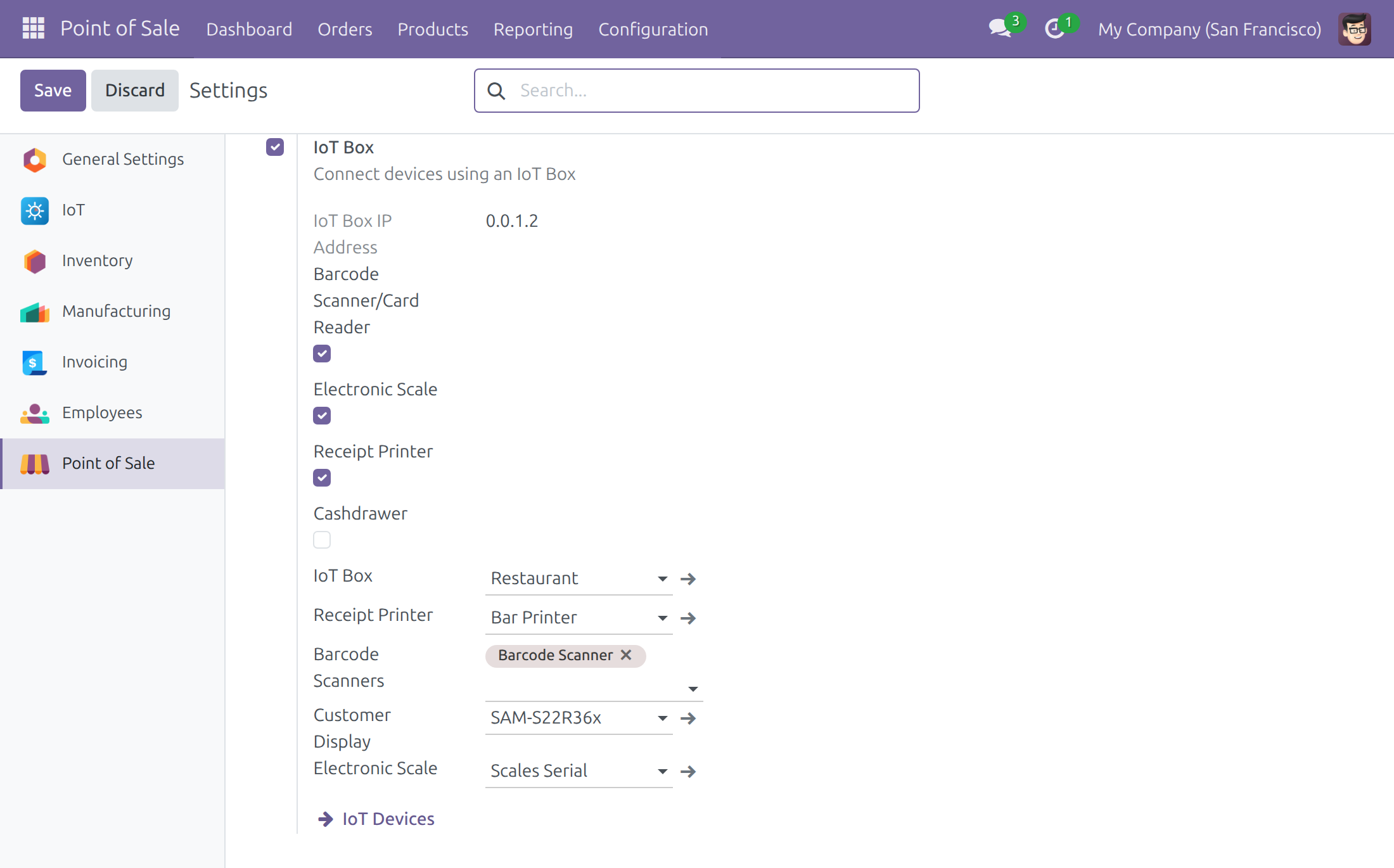
Pick the IoT Box and the receipt printer, barcode scanners, customer display and scale of one till, so several tills can share one box without stealing each other's devices.
Set up in Settings
Choose the box and its devices for the till in Settings and save once; the pickers list the chosen box's devices at once.
Preparation printer on the box
Send kitchen and preparation tickets to a named printer on the box.
See which POS uses a device
Open a device to see which POS uses it; a scanner or display belongs to a single active POS. Jump from a till to the devices of its box.
Customer screen, receipt printer and scale
Each named customer screen shows only its own till and comes back after a box restart. Print receipts on the named printer, with failures reaching the cashier as a clear error. Weigh products priced by weight, with a fresh reading every time.
Scanners claimed per till
Scan products on the till's own scanners; a standing warning shows when the scanner is on another screen or unreachable.
Who it is for
Owner or operations director
Economic buyer: you grow from one till to several and do not want to buy a box per till. One box serves them all, each till with its own devices.
Store Manager
Champion: you set up each till once: the box, the printer, the scanners, the customer screen and the scale. Preparation Printers can send kitchen and preparation tickets to a named printer on the box.
Cashier
End user: you sell with the devices that belong to your till and see a warning when one is elsewhere.
System Administrator and IT / Maintenance Technician
Technical evaluator: you switch the bridge on or off in the IoT Settings and see, from the device, which till uses it.
Best for: shops and outlets that run several Point of Sale tills on one IoT Box.
Set each till's devices once
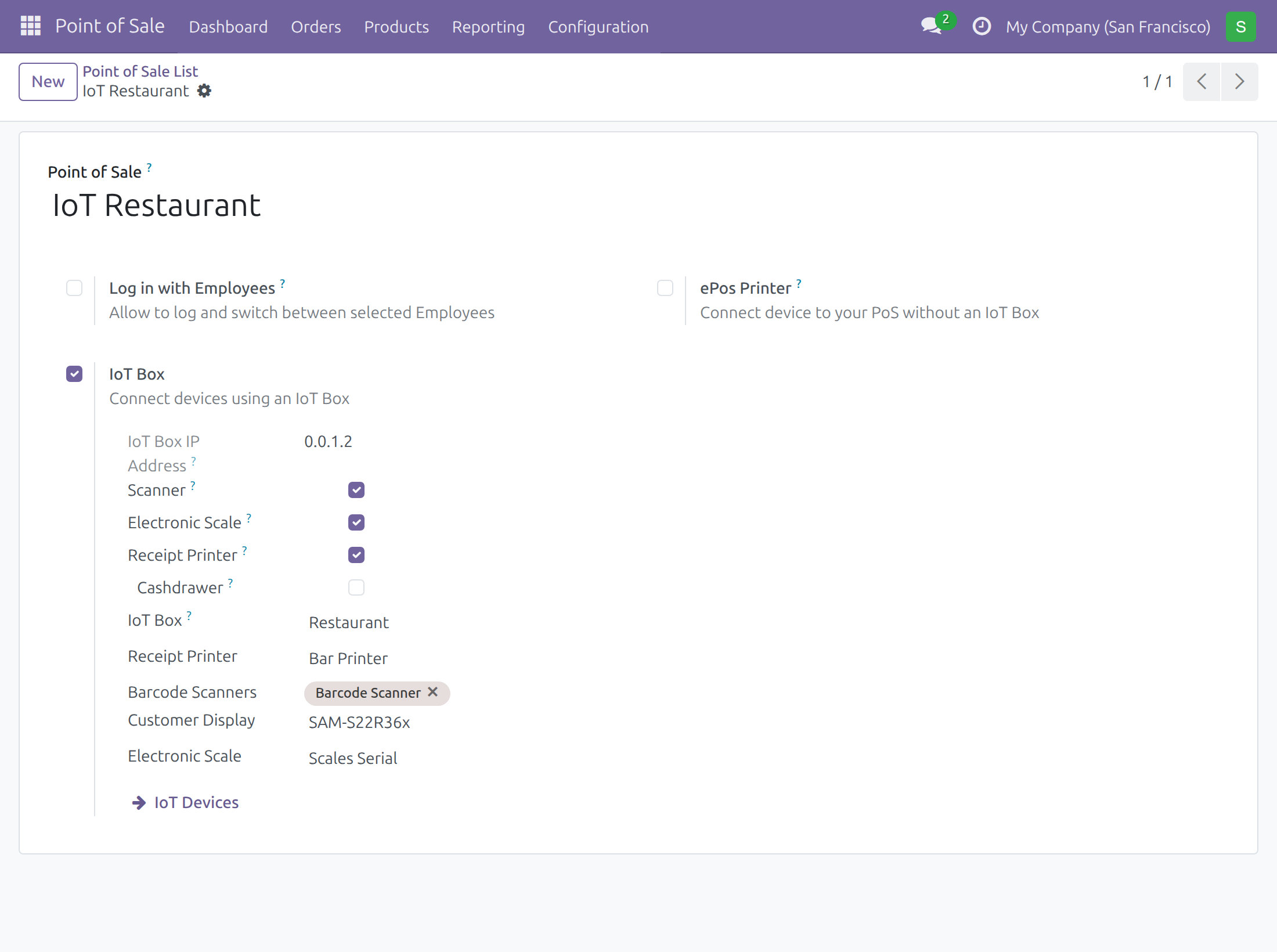
Pick the box, receipt printer, scanners, customer display and scale on the Point of Sale configuration.
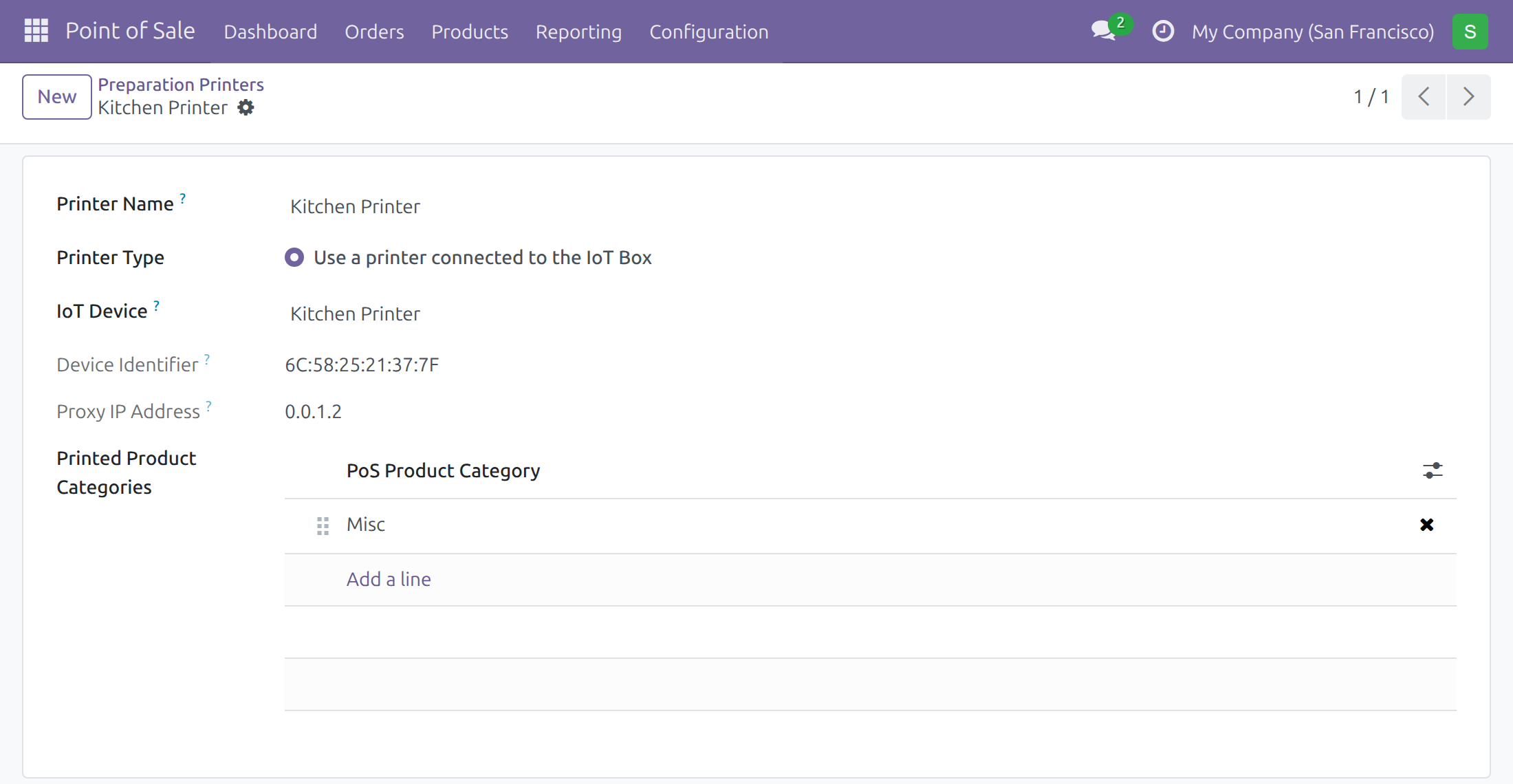
Send kitchen tickets to a named printer
Link a preparation printer to an IoT printer on the box.
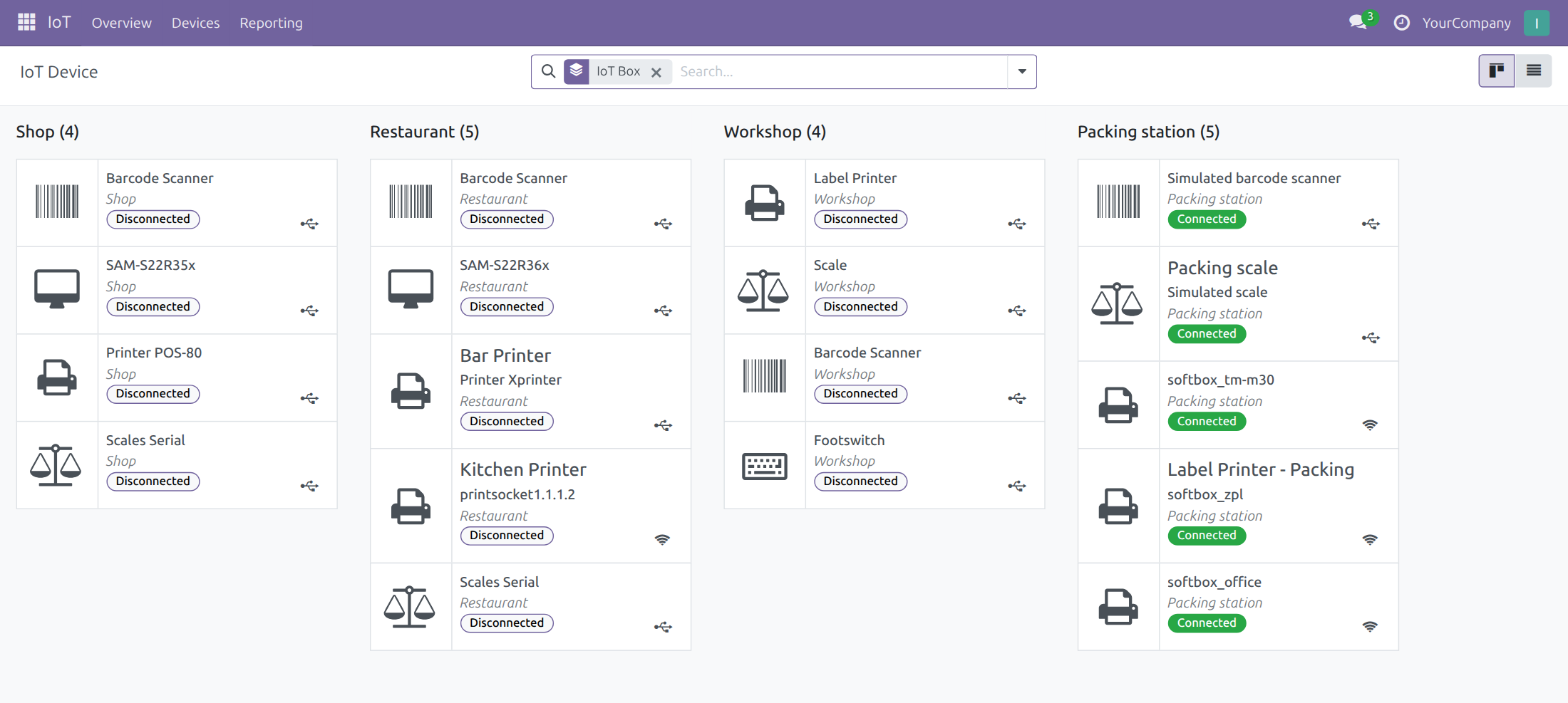
See every device, grouped by box
One list of the devices each box reports.
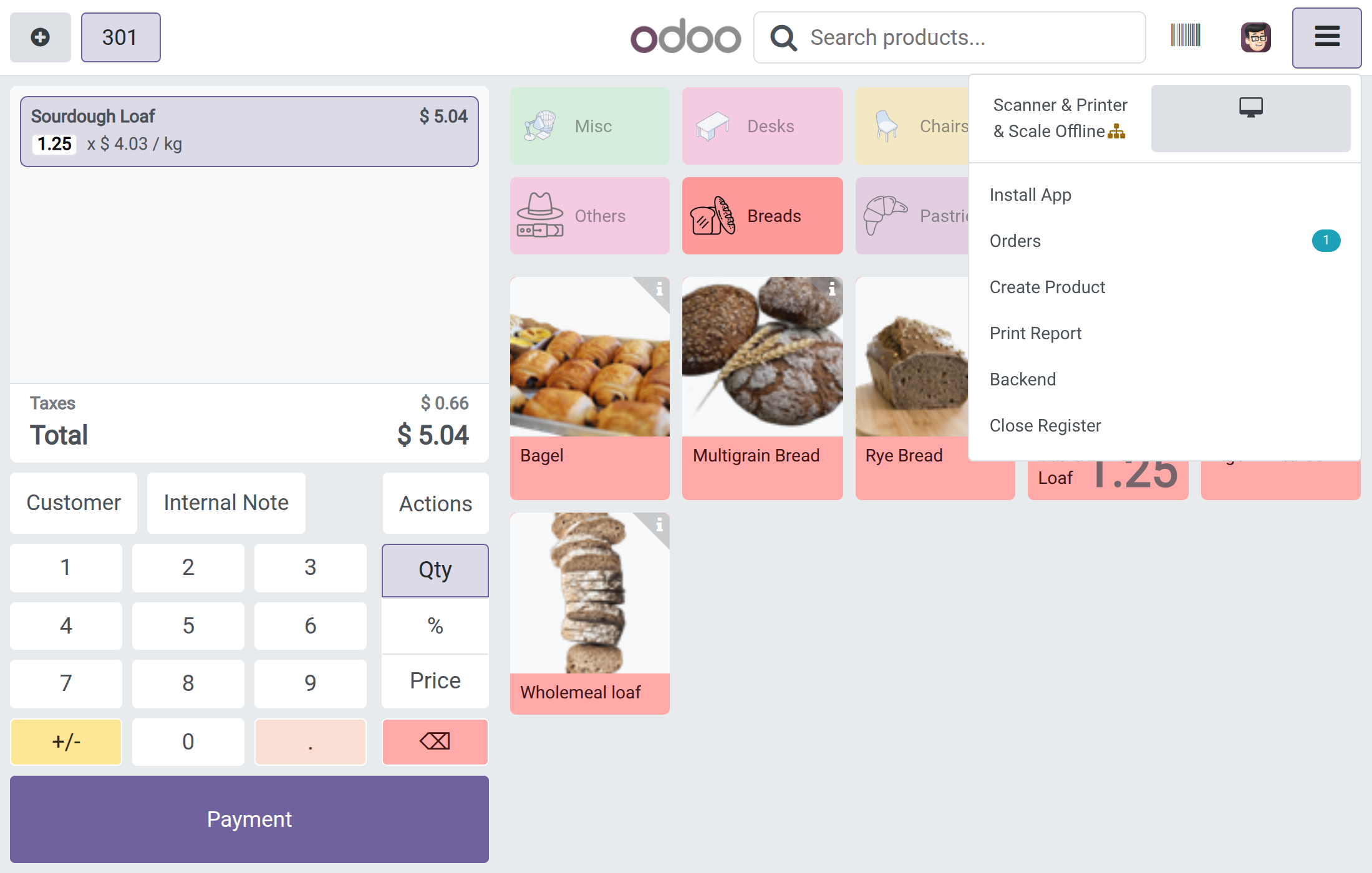
Show the customer screen from the till
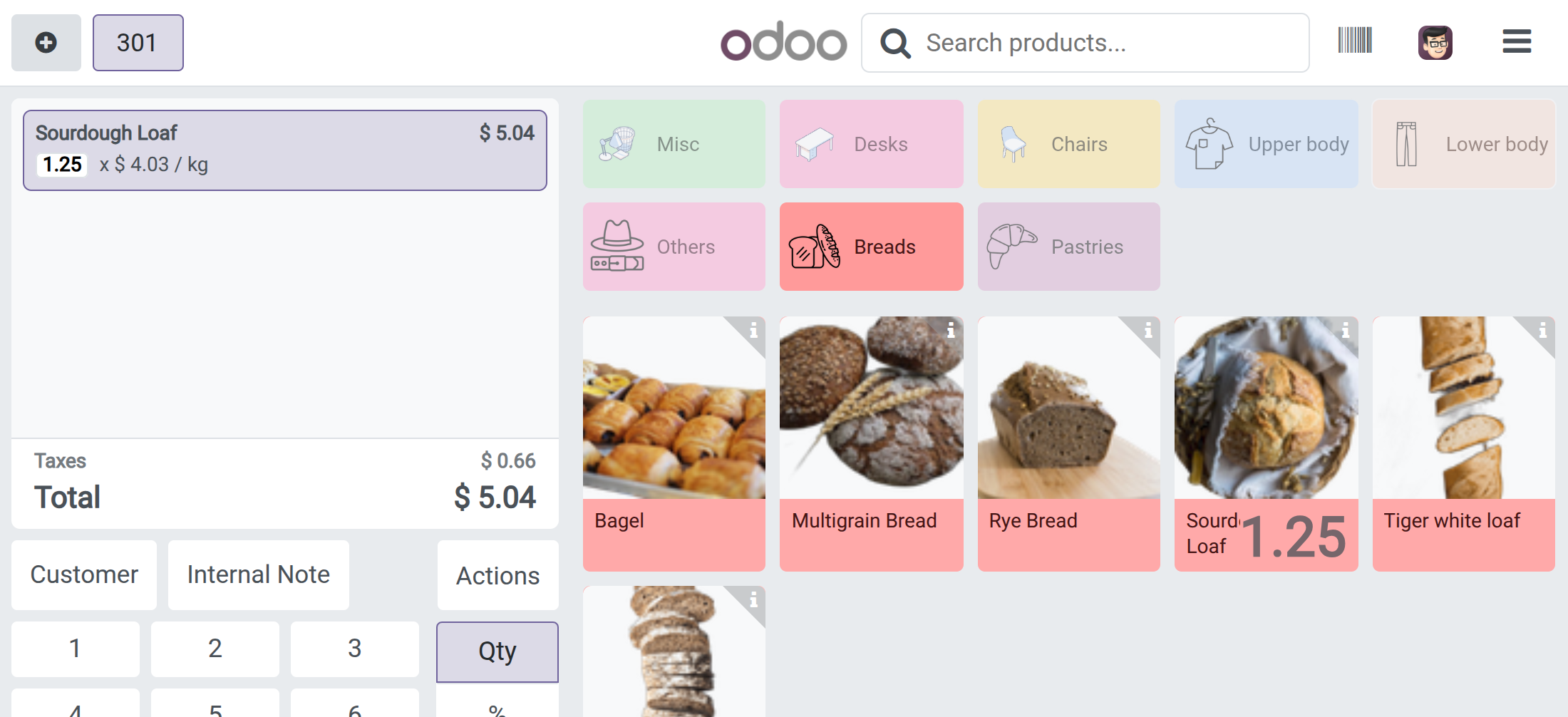
The cashier can show the till page on its customer screen from the POS menu.
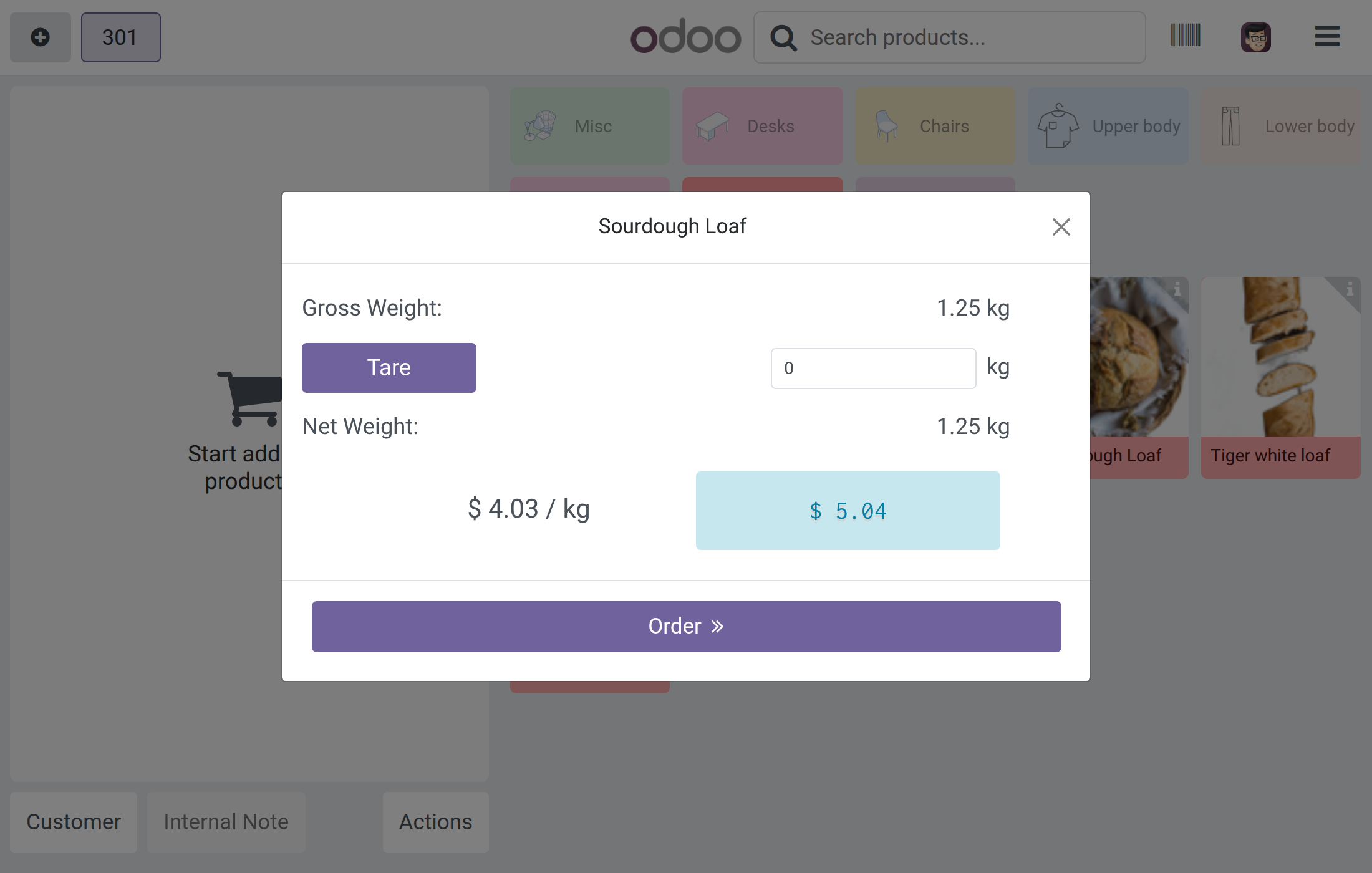
Weigh products priced by weight
The scale screen shows the gross, tare and net weight and the price.
Tell the cashier when a scanner is elsewhere
A standing warning appears when the scanner is unreachable or on another screen.
Frequently Asked Questions
Will two tills fight over one device?
Each till names its own devices. A barcode scanner or customer display belongs to a single active POS, and a till that does not own a named screen never drives it.
Is it hard to set up?
No. First pair the box as the chapter Setting up an IoT box of the IoT documentation describes. Then, in Settings, choose the IoT Box and its devices for the till and save once. Store Managers can also do it on each Point of Sale configuration.
Do cashiers have to learn anything new?
Receipts, scanning, weighing and the customer screen stay on the same till screens. The main addition is the warning when a device is elsewhere or unreachable.
Can kitchen tickets go to a named printer?
Yes. A preparation printer (Point of Sale → Orders → Preparation Printers) can be linked to an IoT printer on the box.
Which servers are supported?
Viindoo Cloud, or your own Viindoo server.
What else do I need?
The Point of Sale app and IoT Box and devices, which this module builds on.
Need help with Pos IoT?
Technical Support
apps.support@viindoo.comTechnical Requirement
- Editions: Odoo Community, Viindoo Cloud
- Required modules: viin_iot, point_of_sale
- License: OPL-1
Pos IoT
Note
Extends viin_iot - see its documentation.
Overview
Pos IoT links the hardware on a paired IoT box to one specific till of the Point of Sale: its receipt printer, its barcode scanners, its scale and its customer screen. One box can serve several tills in a shop, and each till uses only the devices that were named for it, so the hardware of one till never gets in the way of another.
Four kinds of people work with it:
| Role | What they do | Access right to assign |
|---|---|---|
| System Administrator | Installs the module, chooses which people hold which access right, and may set up a till from Settings. | Administration / Settings |
| Cashier | Sells at the till: scans products, weighs products sold by weight, prints receipts and shows the order to the customer. | Point of Sale / User |
| Store Manager | Sets up each till: chooses the IoT box and the named printer, scanners, scale and customer screen, and links preparation printers (kitchen, bar) to devices. | Point of Sale / Administrator |
| IT / Maintenance Technician | Watches boxes and devices, and checks which till uses a device when something stops answering. | Internet of Things (IoT) / User |
The roles are the people who typically hold these jobs; in your company one person may hold several of them.
Setup (for the System Administrator)
Installation
Pos IoT needs Point of Sale and Internet of Things (IoT). Viindoo installs it by itself when both are installed. To check, or to install it directly:
- Open Apps.
- Remove the Apps filter from the search bar and search for Pos IoT.
- Click Activate if it is not installed yet.
To pair a box and connect its devices, follow the chapter Setting up an IoT box of the IoT documentation. Do it before anything below.
Giving people their access rights
- Open Settings ‣ Users & Companies ‣ Users and open the person.
- Give each person the access right of their job:
- the cashier: Point of Sale / User;
- the store manager: Point of Sale / Administrator;
- the IT technician: Internet of Things (IoT) / User.
- Click Save.
Point of Sale / Administrator brings Internet of Things (IoT) / User with it, so the store manager can see the boxes and devices to choose from without a second right. A cashier needs no IoT access right: once the hardware is assigned, it is simply there when the shift is opened.
If you uninstall Pos IoT, Point of Sale / Administrator no longer brings Internet of Things (IoT) / User with it, but the people who already hold it keep it. Remove it by hand from those who no longer need it.
Setting up a till from Settings
Setting up a till is the Store Manager's task (see below). If you hold the Settings right, you can do it from Settings ‣ Point of Sale too: Viindoo only lets people with the Settings right open that page. Choose the till at the top of the page, then use the IoT Box block described in the Store Manager chapter.
Cashier: sells at the till
A cashier opens Point of Sale, then clicks Open Register on the till's card (an open till has its own button there). No IoT access right is needed.
Scan products
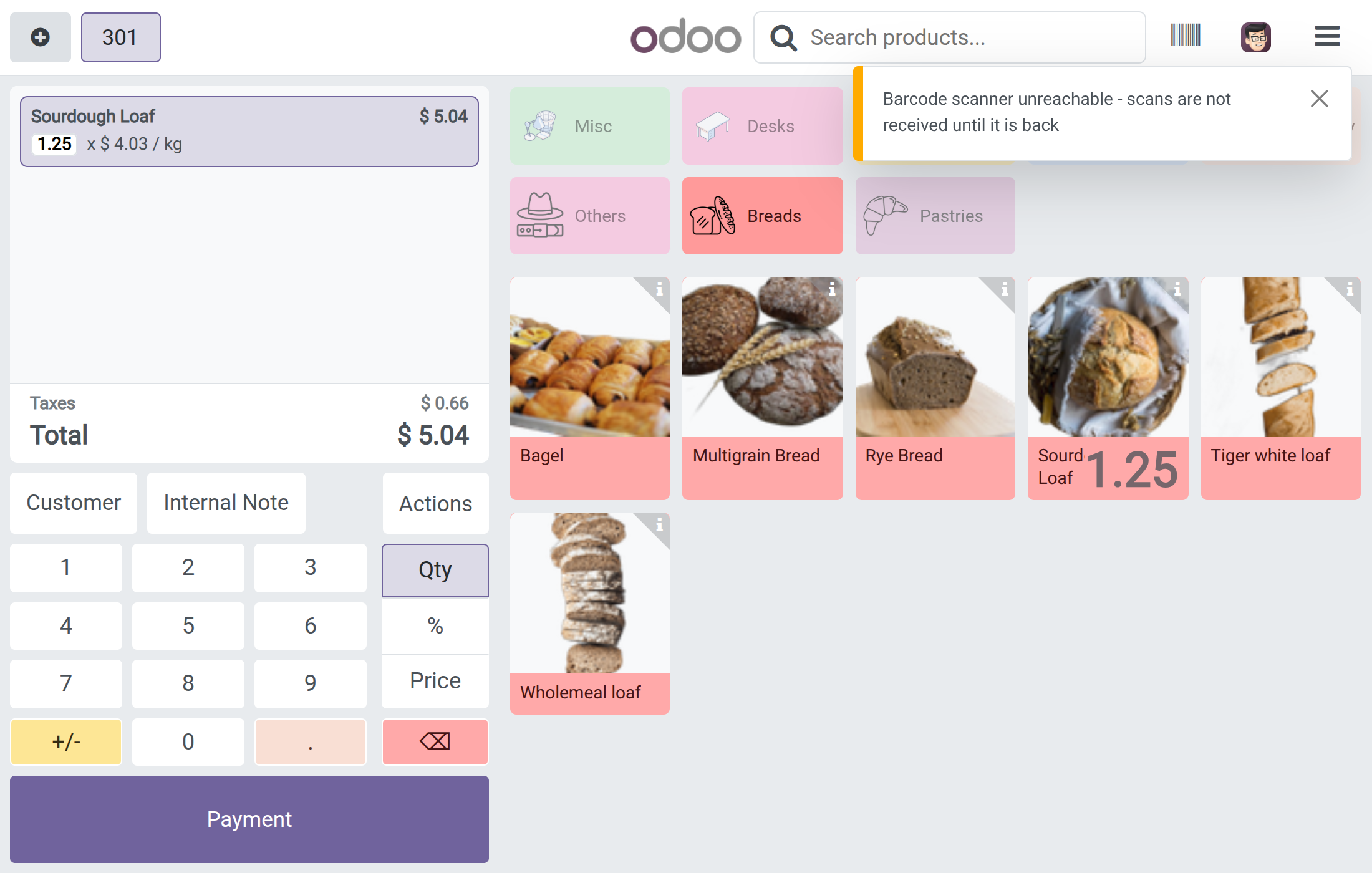
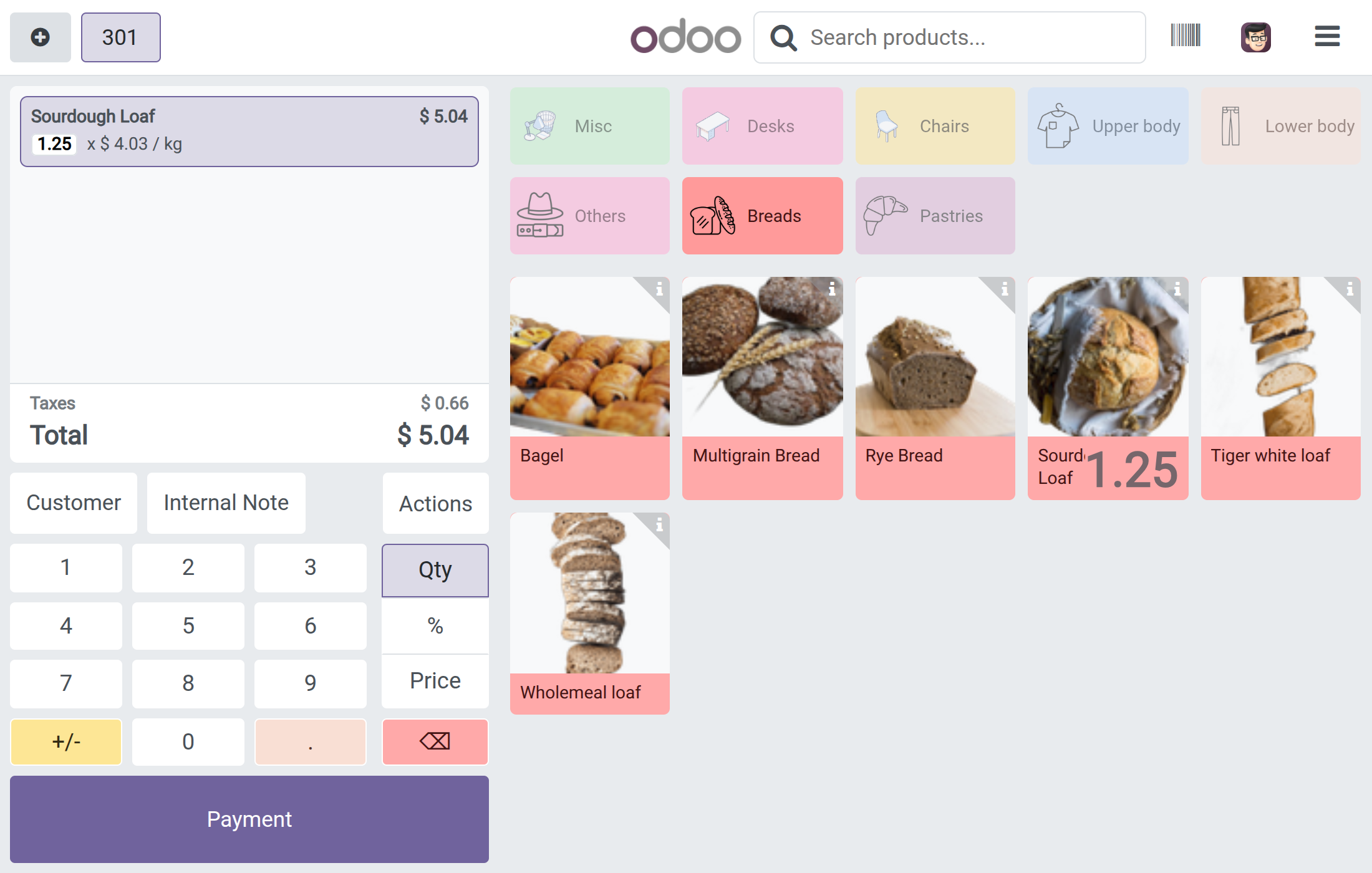
Every barcode scanner named for this till sends its scans straight into the current order. The scanner belongs to one screen at a time. When something stops the scans from arriving, the till shows a notice that stays on the screen until the problem is gone:
- Barcode scanner unreachable - scans are not received until it is back - the till cannot reach the scanner. Check that the IoT box is switched on and on the network. The notice disappears by itself when the scanner is back.
- Barcode scanner in use by another screen - touch this screen to take it back - the same till is open on another screen (another browser tab or a team leader's computer) and that screen holds the scanner. Touch your own till screen to take the scanner back. A scan is never entered twice.
Weigh a product sold by weight
- Click the product. The weighing window opens and shows the weight read from the scale.
- Wait until the weight is steady. Every refresh of the window is a new reading of the scale.
- Click Order to add the line with the weight and its price.
If the scale cannot be read, the till says why: The scale cannot be reached. Check that its IoT box is on and connected., The scale did not answer. Check the scale and weigh again. or The scale could not be read. Check that it is connected and working.
Print the receipt
After Validate, the receipt prints on the receipt printer named for this till. Click Print Full Receipt to print it again. The cash drawer opens only if the Cashdrawer option is ticked for the till; it is a manual option.
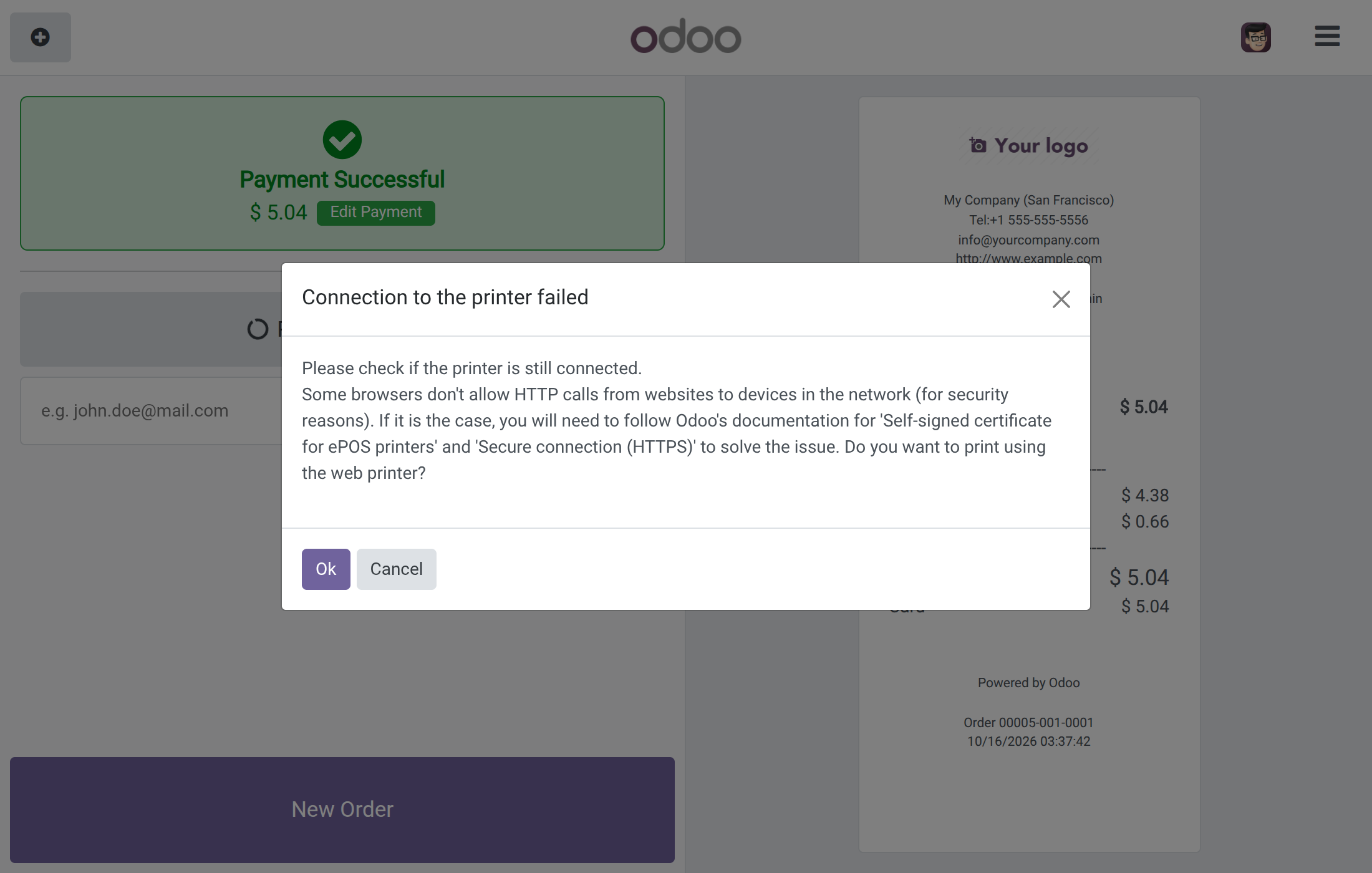
If the printer cannot be reached, the till shows Connection to the printer failed right away. Check that the printer and the box are on, then click Ok to print with the web printer or Cancel to stop.
Show the order to the customer
When the till is set to use a named customer screen (the Another device option), that screen shows this till's order and no other. Open the till menu (the three-line button at the top right) and click the screen icon to show the till page on the customer screen again, for instance after the screen was switched off. The till tells you whether the screen was refreshed. If the box restarts, the screen gets the till page back by itself.
Store Manager: sets up each till
Choose the IoT box and the devices of a till
Open Point of Sale ‣ Configuration ‣ Point of Sales and open the till. The IoT Box block holds the pickers (tick IoT Box first if it is not ticked):
- IoT Box - the paired box this till talks to. Its address is filled in and cannot be typed over once a box is chosen.
- Receipt Printer - the printer on the box that prints this till's receipts.
- Barcode Scanners - every scanner on the box that feeds scans into this till.
- Customer Display - the screen of the box that shows this till's order. Set the customer display of the till to Another device to use it.
- Electronic Scale - the scale this till reads weights from.
- IoT Devices - opens the devices of the box.
The pickers only offer the devices of the chosen box. A barcode scanner or a customer screen can be named for one till at a time; Viindoo stops you when you pick one that another till already uses. A receipt printer and a scale may be shared by several tills.
Do it from Settings
Settings ‣ Point of Sale has the same pickers under Connected Devices ‣ IoT Box. Choose the till at the top of the page, then the box and its devices, and click Save once: the box and its devices are saved together, and the pickers list the devices of the chosen box right after you choose it. Changing the box clears the four device pickers, so a till never keeps a device of another box.
Two tills can share a box and still keep their own devices: give each till its own scanner and customer screen of that box. A till that shares the box but has no named customer screen never drives another till's named screen.
A till that only shows its page on a display (a display-only till) needs the IoT Box option ticked so the till page can reach the screen.
Link a preparation printer to a device
- Open Point of Sale ‣ Orders ‣ Preparation Printers.
- Open or create the printer for the kitchen or the bar.
- Set Printer Type to Use a printer connected to the IoT Box and choose the device in IoT Device. Device Identifier is filled in for you.
Because the device is named, one box can feed a kitchen printer and a bar printer separately.
IT / Maintenance Technician: watches boxes and devices
See which till uses a device
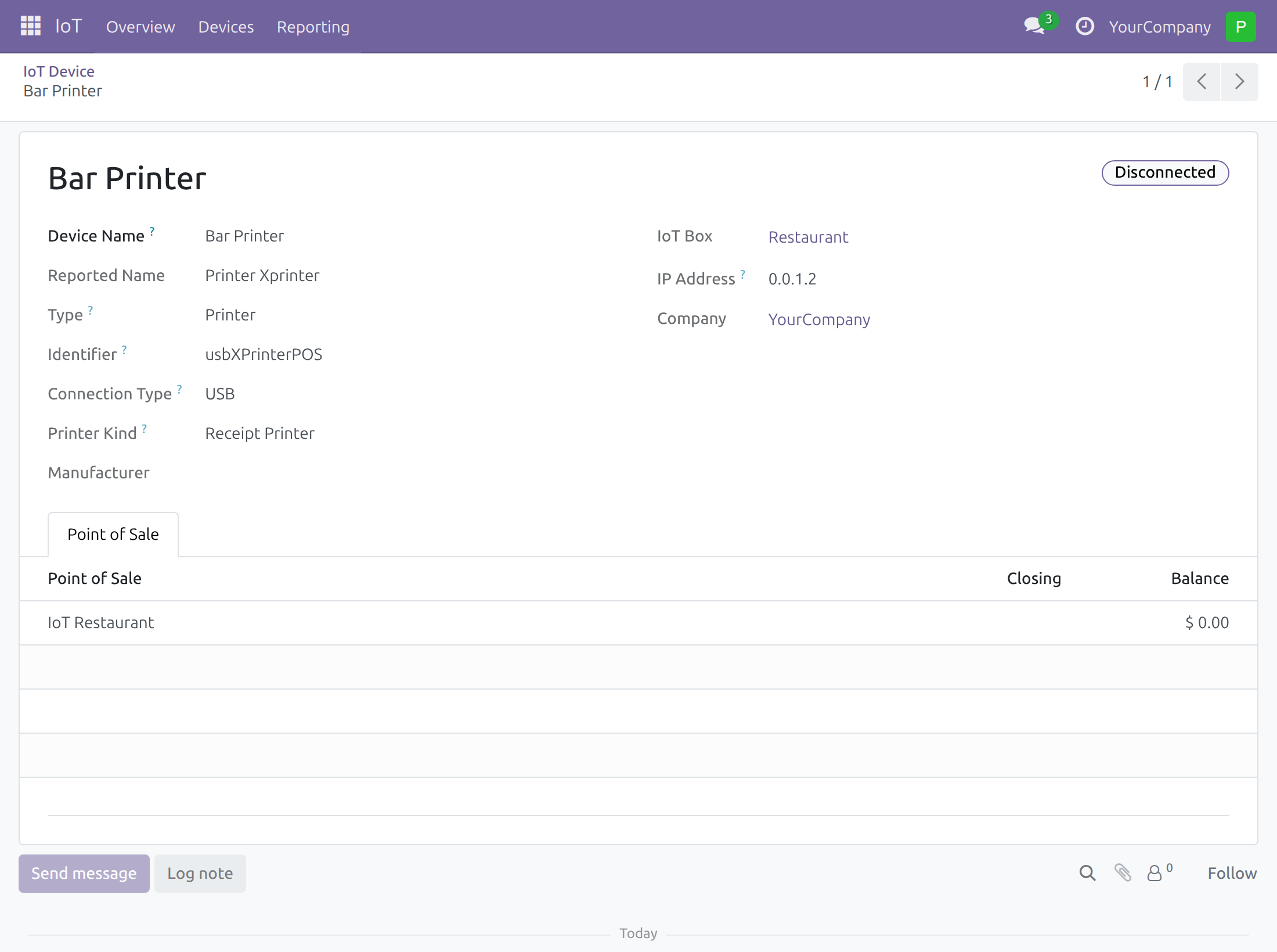
Open IoT ‣ Devices. Devices are grouped by box, and a green Connected or a Disconnected label shows each one's state. A device shows its Device Name when one was set, with the name the device reported below it.
Open a device and click its Point of Sale tab to see the tills that use it. The list is read-only; use it to find out where a device went when it stops answering on the till you expected. It is filled only for people who also hold a Point of Sale right, such as the store manager: with Internet of Things (IoT) / User alone the tab stays empty, so ask the store manager which till uses the device.
When a box stops reporting
A box that stops reporting shows Disconnected, with its devices, once it has been silent for two minutes and the next check has run; the check runs every minute. Nothing is flagged in the first two minutes after the server restarts. The wait can be changed by the Administrator with the system parameter viin_iot.box_presence_grace_seconds (never shorter than 90 seconds). The logs of a box can be read from Viindoo without going to the box.
When the box or a device fails
| What you see | What to do |
|---|---|
| The till says the barcode scanner is unreachable | Check that the box is on and reachable. The notice goes away by itself when the scanner is back. Meanwhile, type the code in the search field. |
| The till says the scanner is in use by another screen | Touch your own till screen to take the scanner back, or close the other screen. |
| The weighing window says the scale cannot be reached or did not answer | Check the scale and the box, then weigh again once the weight is steady. |
| Connection to the printer failed | Check the printer and the box. Click Ok to use the web printer, or fix the printer and click Print Full Receipt again. |
| The customer screen stays blank | Open the till menu and click the screen icon. If the till says the box of the screen is offline, check the box. |
| A device is listed as connected but does not answer | A device unplugged while the box was off line can still show as connected until the box reports again. Reconnect it and wait for the next report. |
Good to know
- A value travels from the box to the browser and then to the server. A person who is allowed to use the till could, with technical means, submit one invented value for one request they opened.
- A till that types the box address by hand without choosing the box is not protected from driving the box's default screen. Choose the box in the picker.
- If a till screen loses its network at the very moment another screen takes the scanner and the box restarts before the first screen is told, the first scan after the restart can be acted on by both screens once.
- A browser may refuse that a secure Viindoo page talks to the box on a private network address and ask you to allow it.
Troubleshooting
A barcode scanner or a customer screen cannot be picked on a till. Another till already uses it. Free it from that till, or from the Point of Sale tab of the device.
After changing the IoT box of a till, the printer, scanner, screen and scale are empty. That is expected: the pickers are cleared so no device of the old box stays on the till.
The pickers of the till are empty. Choose the IoT box first. The pickers list only the devices of that box; if the box has none, check that it is paired and reporting. To pair a box and connect its devices, follow the chapter Setting up an IoT box of the IoT documentation.
A kitchen or bar printer receives nothing. Check that its Printer Type is Use a printer connected to the IoT Box and that IoT Device is the right device.
FAQ
Does a cashier need an IoT access right? No. The Point of Sale / User right is enough.
Can one box serve several tills? Yes. Each till has its own named scanner and customer screen; a printer and a scale can be shared.
Where do I pair the box? To pair a box and connect its devices, follow the chapter Setting up an IoT box of the IoT documentation.
Can two preparation printers run from one box? Yes. Link each preparation printer to its own device.
This software and associated files (the "Software") may only be used (executed, modified, executed after modifications) if you have purchased a valid license from the authors, typically via Odoo Apps, or if you have received a written agreement from the authors of the Software (see the COPYRIGHT file).
You may develop Odoo modules that use the Software as a library (typically by depending on it, importing it and using its resources), but without copying any source code or material from the Software. You may distribute those modules under the license of your choice, provided that this license is compatible with the terms of the Odoo Proprietary License (For example: LGPL, MIT, or proprietary licenses similar to this one).
It is forbidden to publish, distribute, sublicense, or sell copies of the Software or modified copies of the Software.
The above copyright notice and this permission notice must be included in all copies or substantial portions of the Software.
THE SOFTWARE IS PROVIDED "AS IS", WITHOUT WARRANTY OF ANY KIND, EXPRESS OR IMPLIED, INCLUDING BUT NOT LIMITED TO THE WARRANTIES OF MERCHANTABILITY, FITNESS FOR A PARTICULAR PURPOSE AND NONINFRINGEMENT. IN NO EVENT SHALL THE AUTHORS OR COPYRIGHT HOLDERS BE LIABLE FOR ANY CLAIM, DAMAGES OR OTHER LIABILITY, WHETHER IN AN ACTION OF CONTRACT, TORT OR OTHERWISE, ARISING FROM, OUT OF OR IN CONNECTION WITH THE SOFTWARE OR THE USE OR OTHER DEALINGS IN THE SOFTWARE.
