

Import from Google Sheets
by Viindoo
| Lines of Code | 2902 |
| Technical name | viin_google_sheet_import |
| License | OPL-1 |
| Website | https://viindoo.com/apps/modules/18.0/viin_google_sheet_import |
| Read description for | |
| Required Apps | Discuss (mail) |
| Included Dependencies | Safe IR Metadata Proxies |
 Import from Google Sheets
The sheet your team already fills in becomes Odoo records, in one go
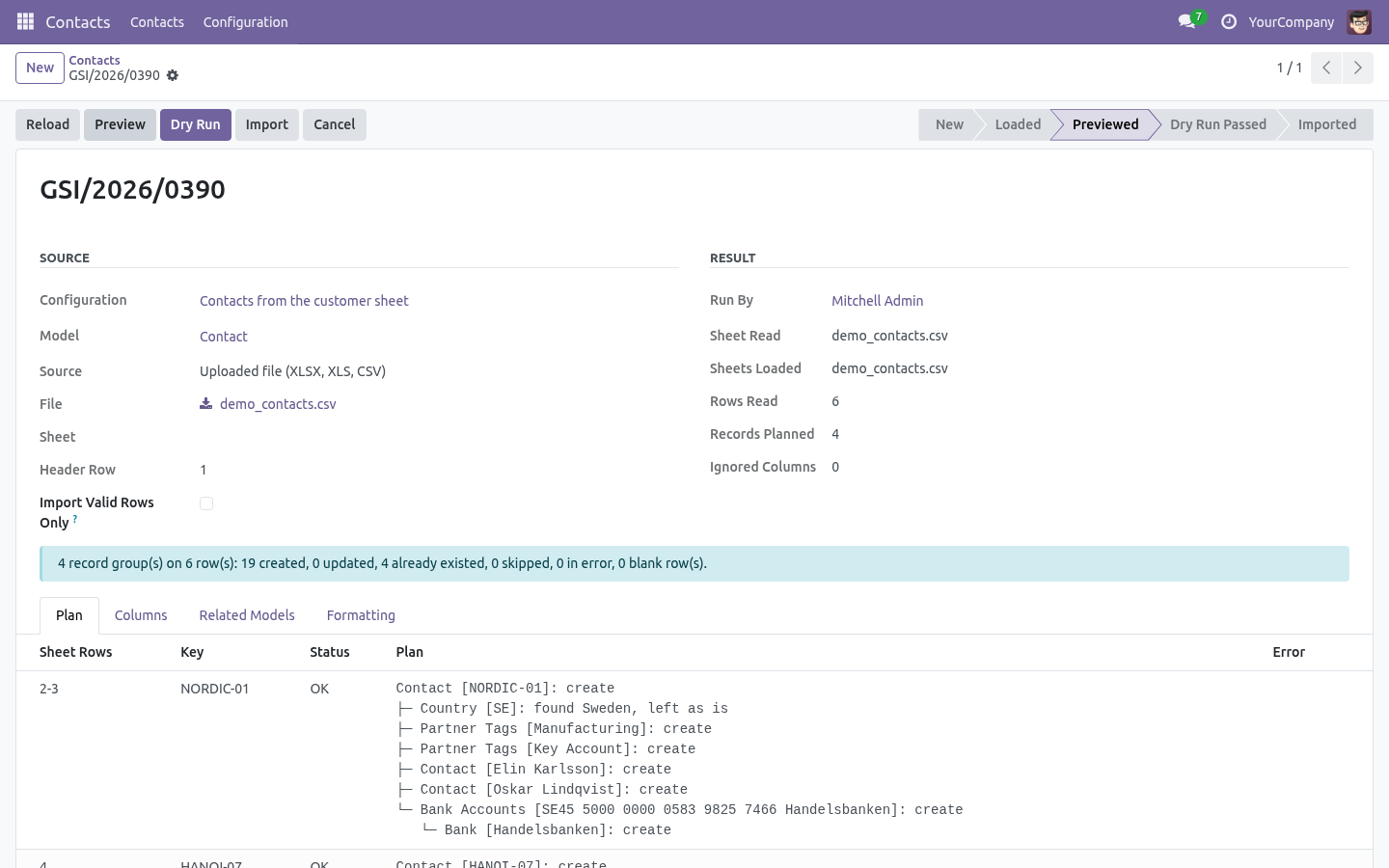
Sales orders with their products and vendors. Bills of materials with their components. Contacts with their people, tags and bank accounts. One import, not four.
Standard import stops at the first relation
To import a sales order with the standard tool you first import the products, then the vendors, then the order, each from its own file, each prepared by hand. A related record can only be found by name, and a new product gets a name and nothing else: no internal reference, no category, no dimensions. Teams that work from a shared Google Sheet end up keeping the sheet and retyping it into Odoo.
This app reads that sheet directly. A column can point at Order Lines > Product > Vendors > Vendor > Name, and the line, its product and the product's vendor are created from the same row when they do not exist yet, found by the columns you choose when they do.
How it works
1. Describe the sheet once
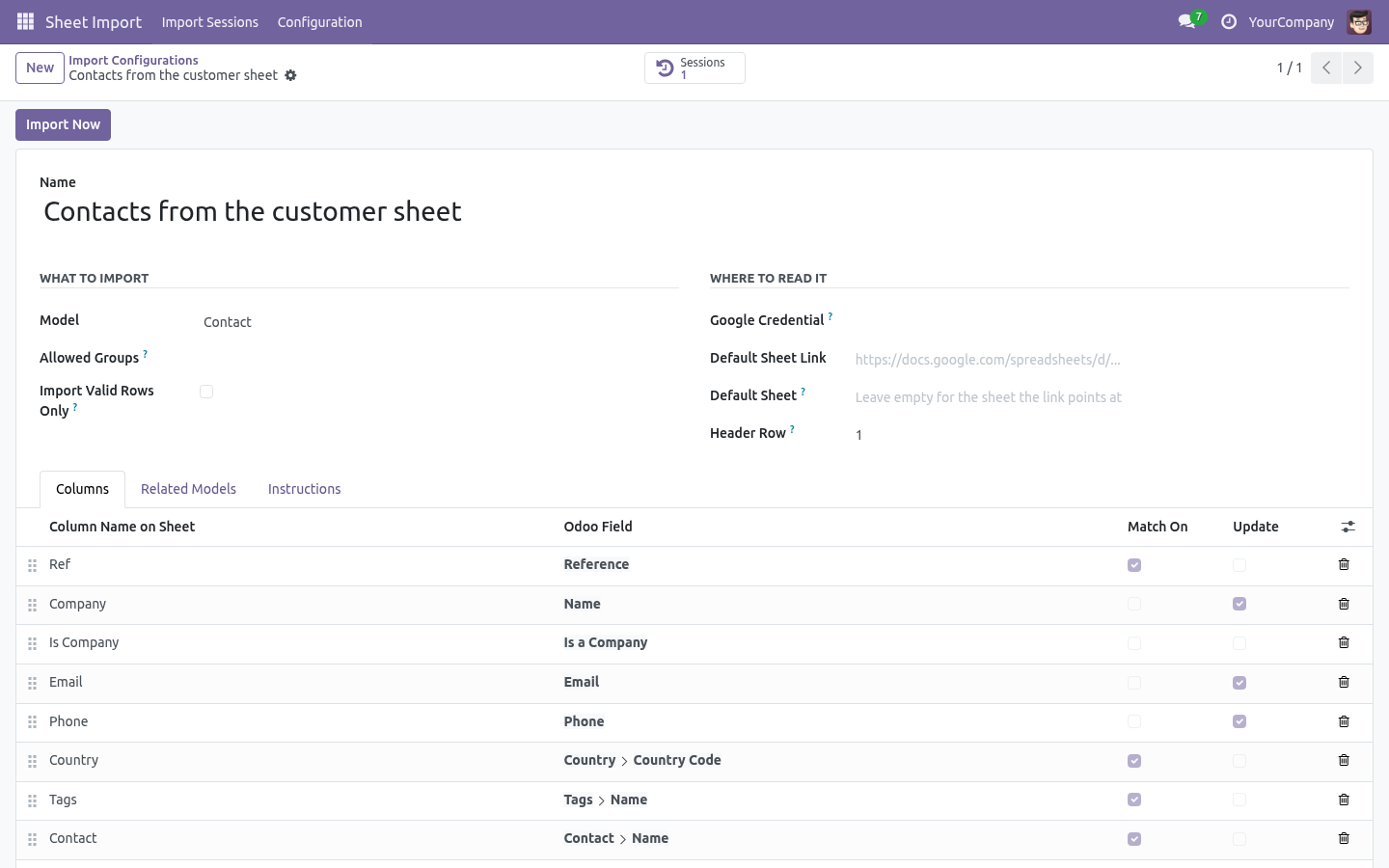
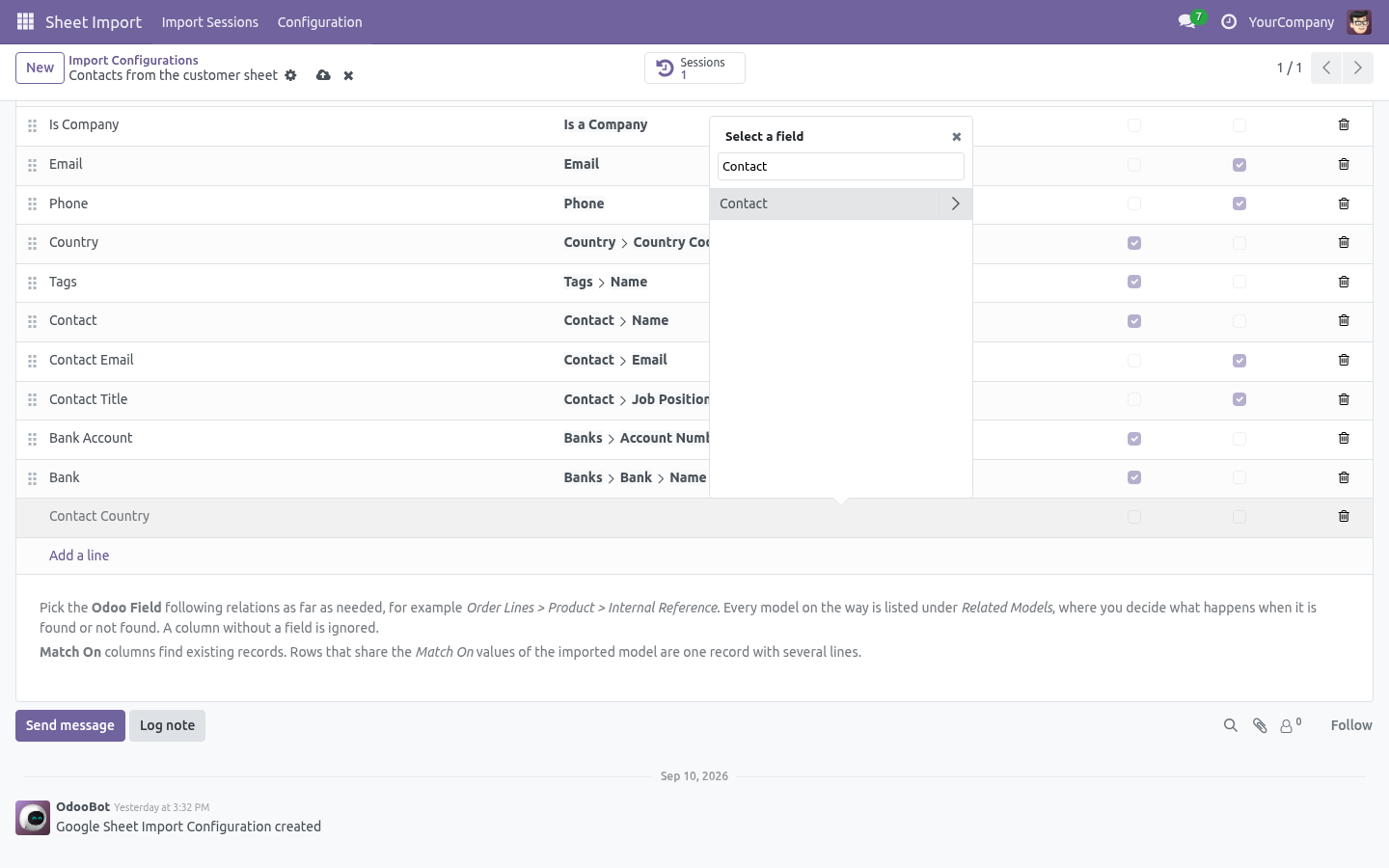
One configuration per model: the default sheet link, the sheet, the header row, the Google credential and who may run it. Read Columns from Sheet lists every column and pre-fills the field whose name reads the same. The Odoo field is picked from a tree that follows relations, like the one of the custom filters, and offers only the fields an import can write - what Odoo computes itself is left out. Match On columns find existing records; rows sharing the same key become one record with many lines, so a 250-line order is a 250-row sheet.
Per column, only what is needed: a default value, a value mapping for selection fields
(SX = manufacture), a Python expression to compose the value from the row.
Numbers and dates written as text follow your language settings, like the standard import.
2. One policy per related model
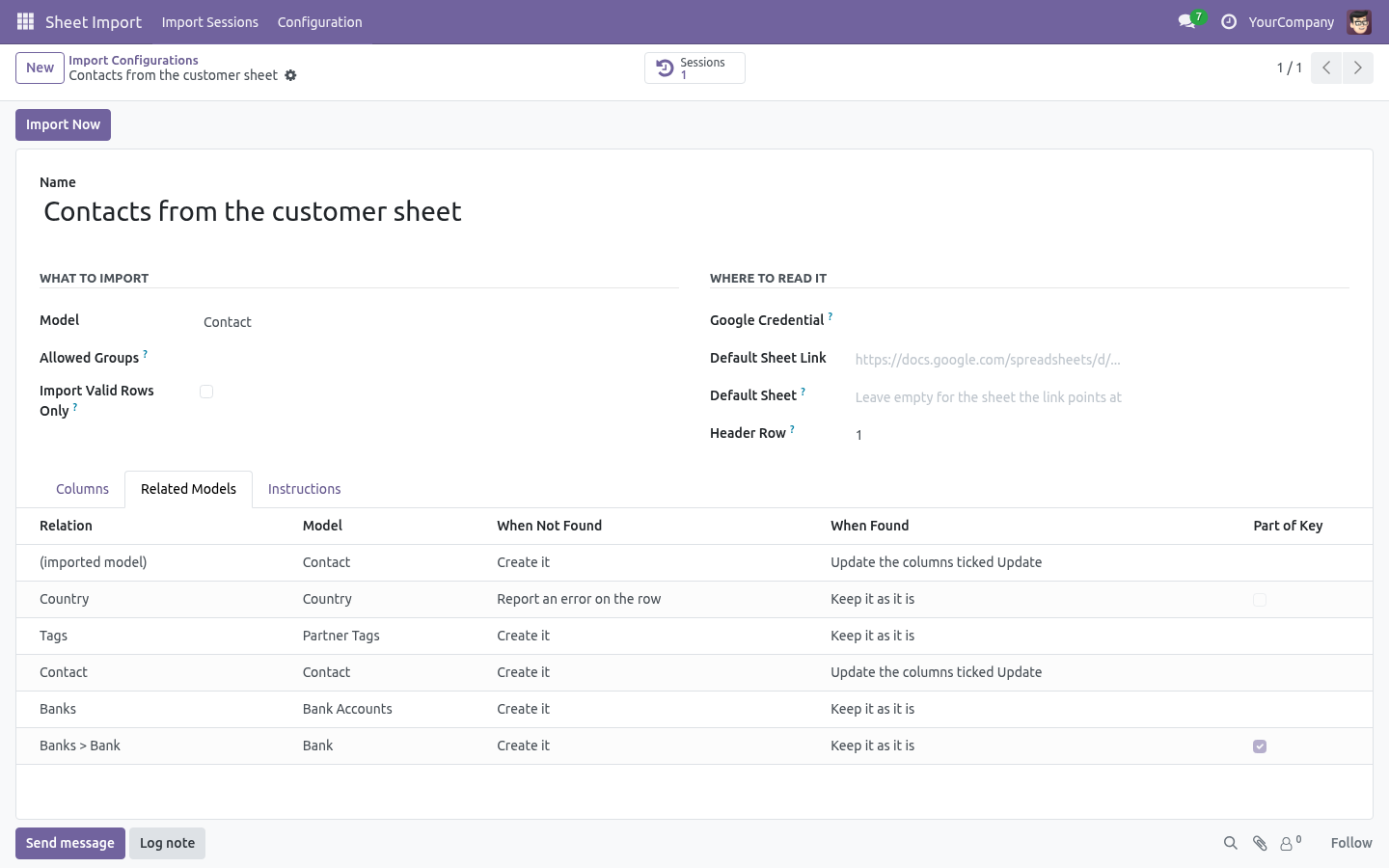
Every model the paths reach is listed with its own policy. When not found: create it, leave the field empty, or refuse the row. When found: use it as is, update the columns marked Update, or refuse the row. A product is found by its internal reference and never by a partial name; several matches are reported, never picked silently.
3. Import from the cog menu
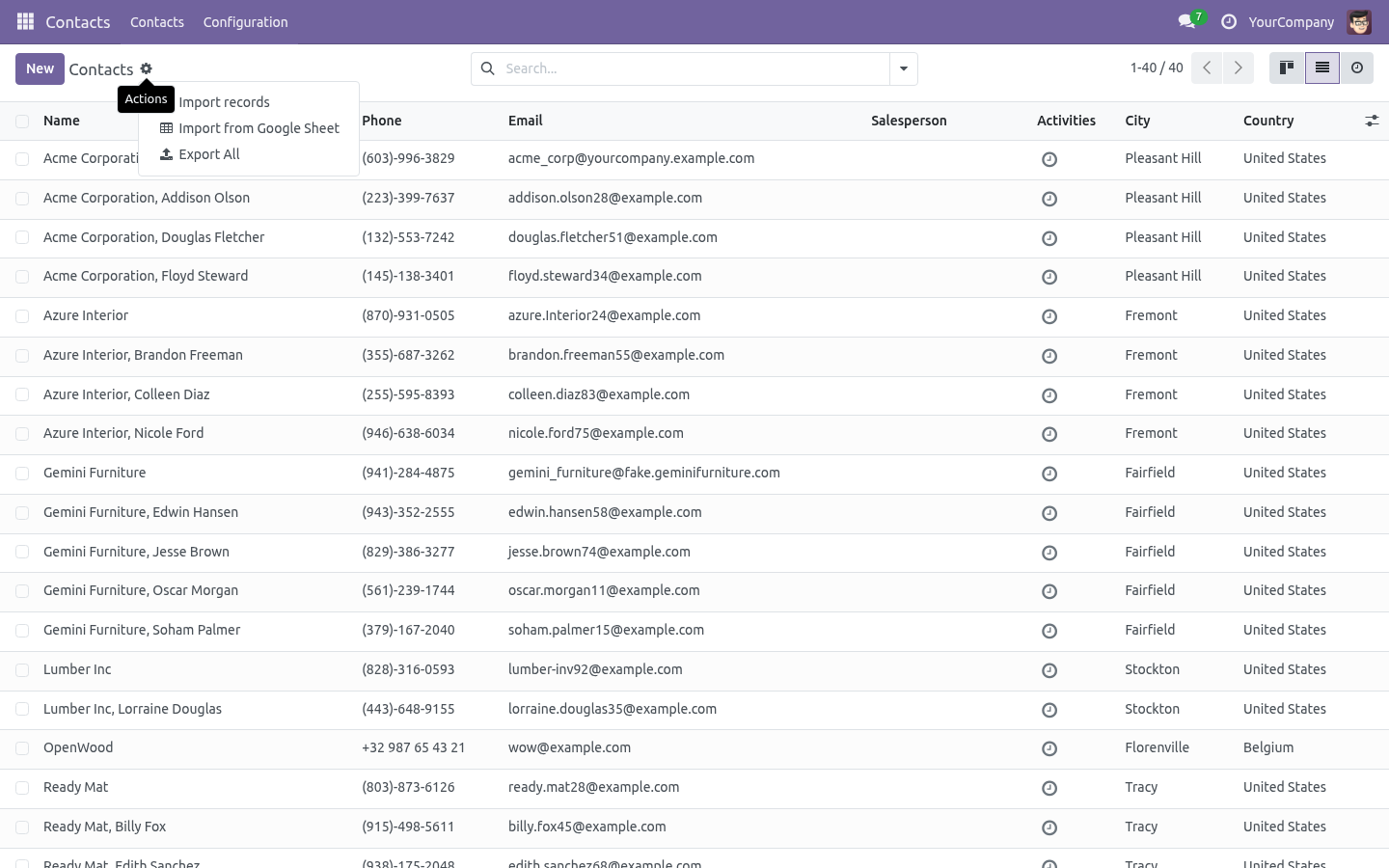
Import from Google Sheet appears next to the standard Import records on the list, kanban and form views of every configured model, for the users allowed to run it. The dialog offers the default sheet link, which can be changed on the spot, or an uploaded XLSX/CSV file when there is no Google access.
4. Preview, dry run, import
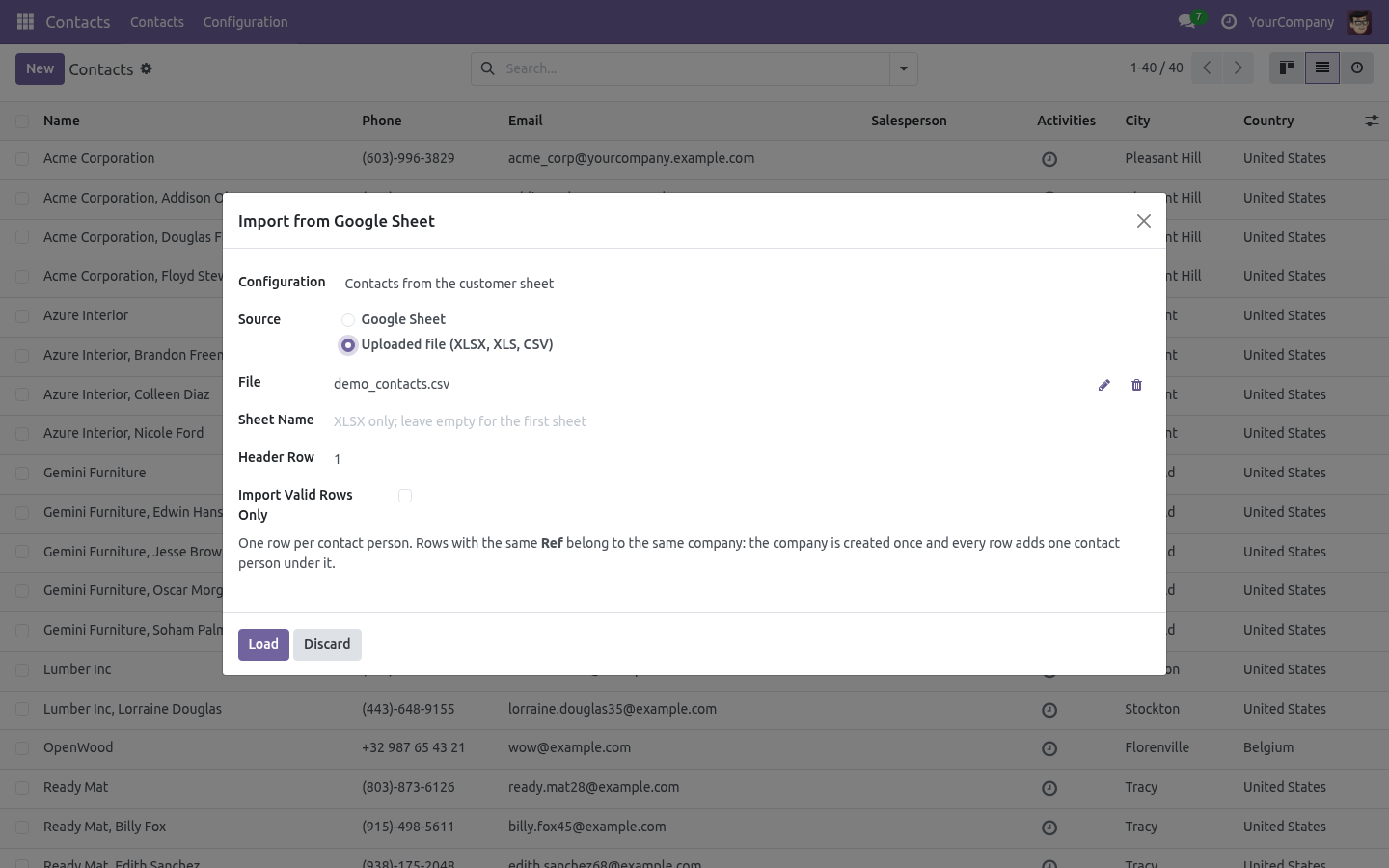
Preview shows, per record, what will be created, matched, updated or skipped, and the rows in error, without writing. It reads as a tree: the imported record on top, everything it needed beneath it, models named as your team knows them. Dry run really executes the import, constraints and access rights included, then rolls it back. Import writes. Unless you tick Import Valid Rows Only, nothing is written when a single row fails.
The mapping can be adjusted for one session when a sheet differs from the usual one, and an administrator can save the adjusted mapping back to the configuration.
5. Every run is kept
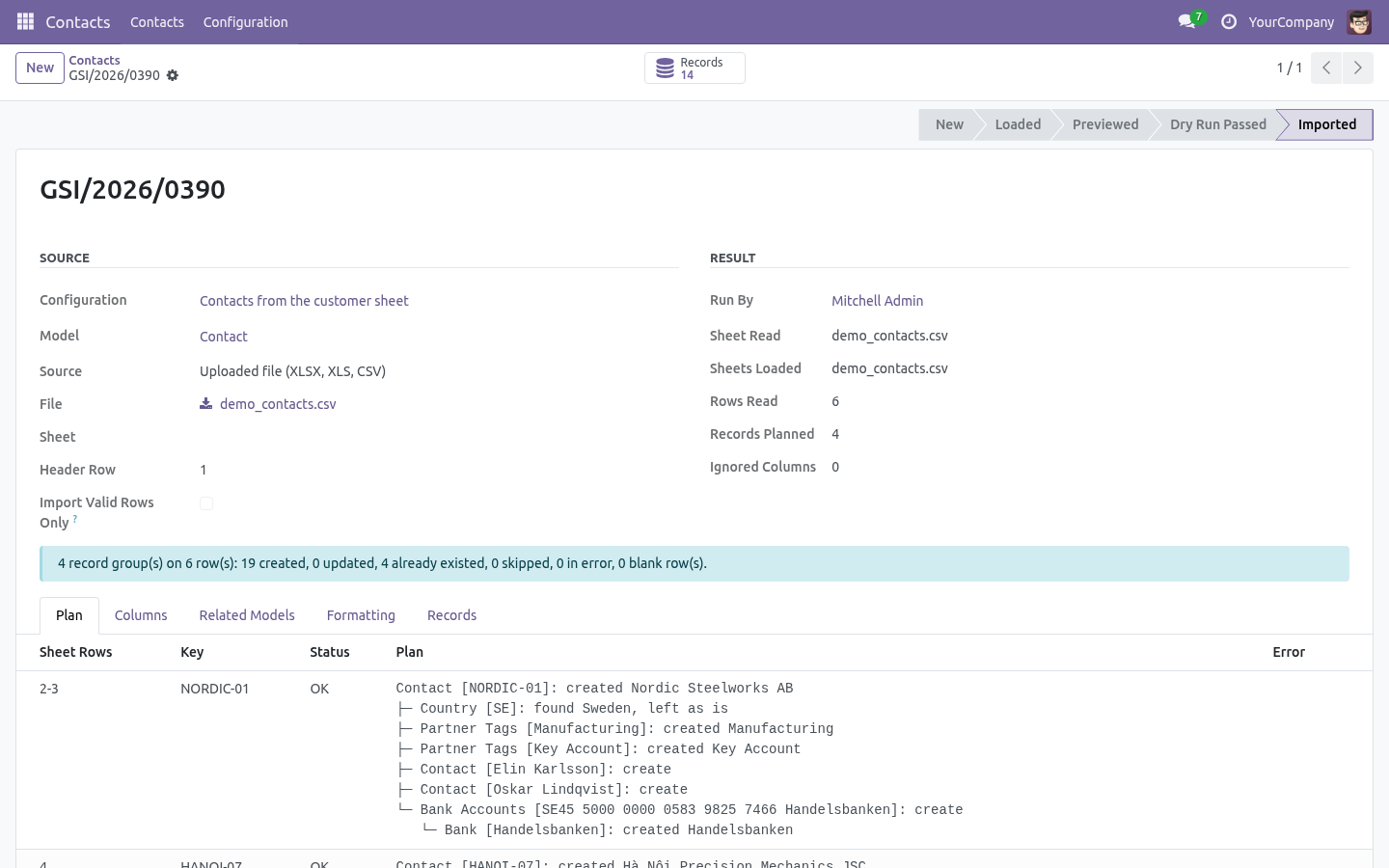
An import session records the mapping it used, its counters, the rows in error and a link to every record it created or updated. Import the same sheet again next week: existing records are matched, only the new rows are created.
6. Google access that nobody has to click through
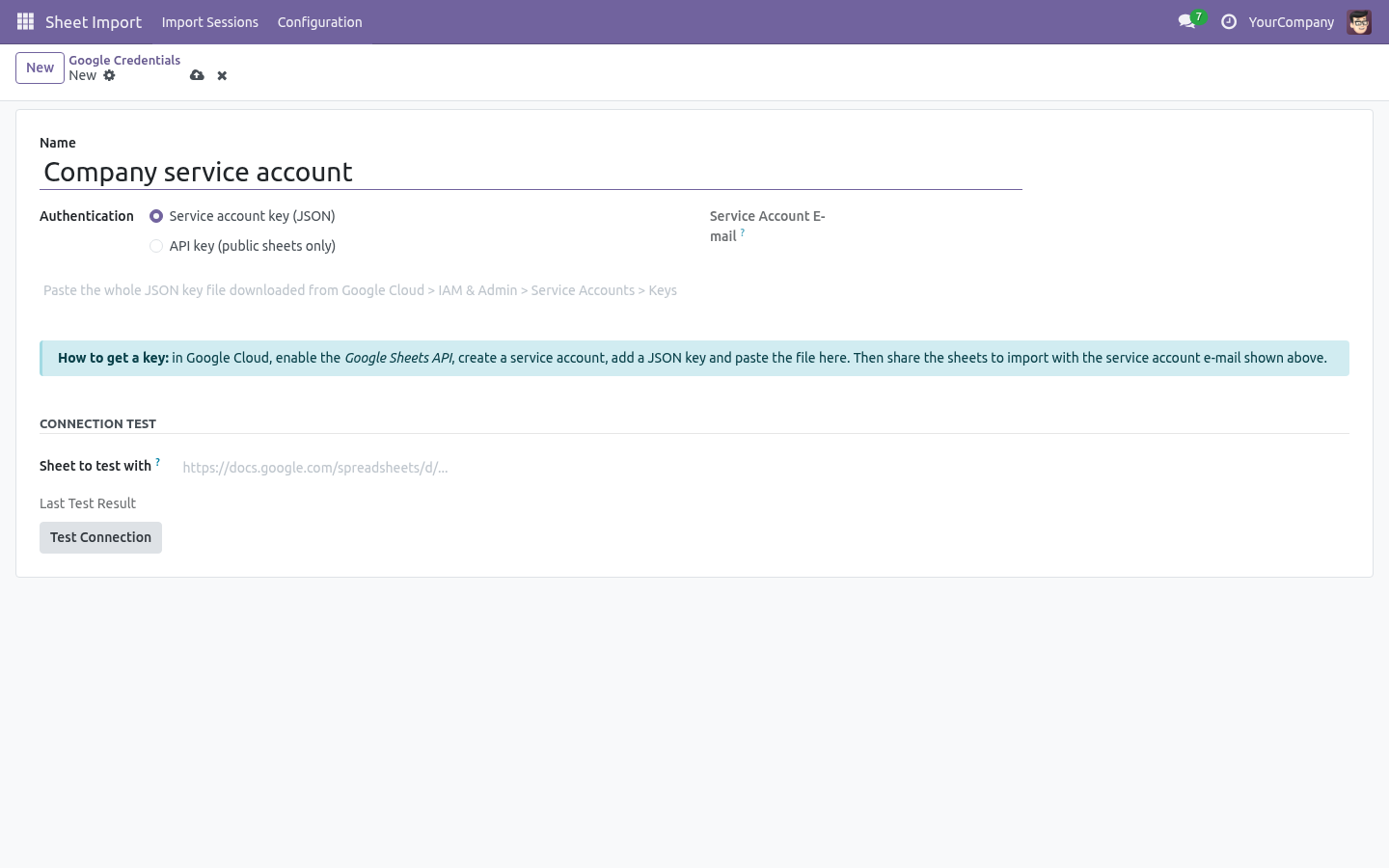
Paste the JSON key of a Google Cloud service account and share your sheets with its e-mail address, like sharing with a colleague. No OAuth consent screen, no personal account. The key is readable by administrators only and is never sent to the browser. An API key works for public sheets.
Details that matter on a real sheet
- Column headers are matched ignoring case and spacing; inserting a column does not break the mapping.
- Lines may live on a second sheet of the spreadsheet, joined on the header key.
- Numbers stay numbers and dates stay dates whatever the sheet's display locale.
- Numbers and dates typed as text follow your language settings, adjustable per session.
- Yes/no cells understand yes, no, x, 1, 0 and their Vietnamese equivalents.
- Blank rows are ignored; an empty required cell names its row and column.
- Archived records are matched, not duplicated.
- The import runs with the user's own access rights.
- Two hooks let a vertical add-on enrich the values of a node or act after a record is created.
- Runs on Community and Enterprise, without any other paid app.
How we make sure it works
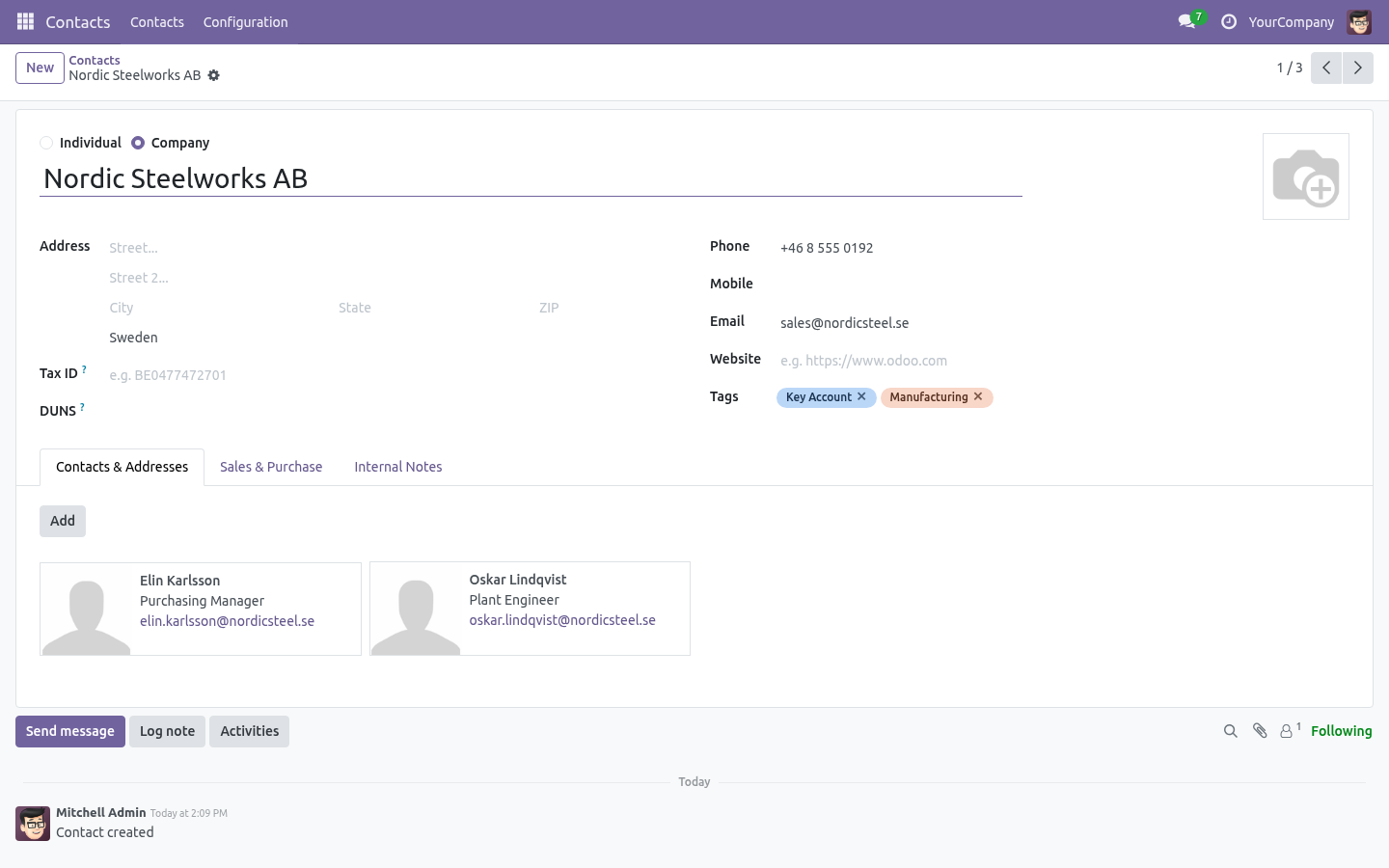
The app ships with 83 automated tests that run on every change: one import creates the company, its contacts, tags and bank; importing the same sheet twice creates nothing twice; several matches are reported, never picked; preview writes nothing; a dry run rolls back but keeps the counters; a failed group does not poison the next one; the secret is readable by managers only; the import runs with the user's rights.
Import from Google Sheets
This guide shows how to connect Odoo to a Google Sheet your team already fills in, describe once how its columns map onto an Odoo model, and then import the sheet in three clicks: load, preview, import.
Installation
- Go to Apps.
- Remove the default Apps filter, search for Import from Google Sheets, and click Install. Odoo installs Safe IR Metadata Proxies along with it, so that users who are not administrators can pick models and fields.
Configuration
Step 1 - Connect Google
- In Google Cloud Console, open or create a project and enable the Google Sheets API.
- Under IAM & Admin > Service Accounts, create a service account, open its Keys tab and add a JSON key. A file downloads.
- In Odoo, go to Sheet Import > Configuration > Google Credentials, create a credential of kind Service account key, paste the whole JSON file and save. The service account e-mail appears on the form.
- Share every spreadsheet you want to import with that e-mail address, as Viewer.
- Paste any shared link in Sheet to test with and click Test Connection: Odoo lists the sheets it can read.
An API key credential works too, but only for spreadsheets shared with Anyone with the link.
Step 2 - Describe the mapping
Go to Sheet Import > Configuration > Import Configurations and create one per model and spreadsheet.
- Model: what the rows become, for example Sales Order.
- Default Sheet Link, Default Sheet, Header Row: where the data is. The user may change the link when they start an import.
- Allowed Groups: leave empty to let every Sheet Import user run it.
Click Read Columns from Sheet: every column of the header row is listed, and the Odoo field whose name reads the same is filled in for you. Then complete the Columns list:
- Column Name on Sheet is the header cell, exactly as written (case and spacing do not matter).
- Odoo Field is picked from a tree that follows relations as far as needed, for example Order Lines > Product > Internal Reference. Every model on the way is listed under Related Models. A column without a field is ignored. The tree offers the same fields the standard import offers, and no others: what Odoo computes itself, what it fills in by itself, and the mail plumbing every model inherits are left out, so there is nothing in the list that the import could not write.
- Match On is a tick: tick the columns Odoo uses to find a record that already exists. Tick the product's internal reference, and a product with the same reference is reused instead of created again; tick the order's reference, and rows sharing it become one order with several lines. When several columns of the same model are ticked, all of them must match.
- Update is a tick too: when the record already exists, the field is overwritten with the sheet value, provided the model is set to Update under Related Models.
- A line with no column name and a default value writes that value on every record: the product type, "storable", or anything the sheet does not carry.
- The optional columns cover the rest: Compare (exact, ignoring case, containing), a default value for empty cells, required, a value mapping (SX = manufacture) for selection fields, and a Python expression with value and row to derive or compose the value.
Numbers and dates written as text are read the way the language settings of the user say, like the standard import: decimal and thousands separators and the date format. They can be changed on each import session under Formatting. Real number and date cells need nothing.
The Related Models list shows every model the columns reach and lets you choose, per model:
- When Not Found: create it, leave the field empty, or report an error on the row.
- When Found: keep it as it is, update the columns ticked Update, or report an error.
- Part of Key, for a many2one relation: tick when a different value means a different record above. A different product makes a different order line, so it is ticked; a different country does not make a different contact, so it is unticked. Odoo pre-ticks relations right under the imported model or under its lines, and leaves relations beneath another relation unticked.
Lines on another sheet
A column may name a Sheet of the spreadsheet. That sheet must also carry the Match On columns of the imported model, so its rows can be joined to the rows of the default sheet. This is how an order and its lines can live on two sheets.
Usage
- Open the list, kanban or form of the model, click the cog menu and choose Import from Google Sheet. The entry only appears on models that have a configuration you may run.
- Confirm or change the link and sheet, or upload an XLSX, XLS or CSV file instead, and click Load. XLSX cells keep their type, whatever display format the sheet uses.
- The session opens. Its Columns list shows every column of the sheet: the mapped ones, and in grey the ones the configuration ignores. Pick a field to import one of them; an administrator can save the adjusted mapping back to the configuration.
- Click Preview: the Plan shows, per record, what will be created, matched, updated or skipped, and the rows in error. It reads as a tree - the imported record on top, everything it needed beneath it - so it is plain which product belongs to which line, and which vendor to which product. Models are named as you know them, Sales Order rather than sale.order.
- Click Dry Run: the import is really executed, constraints and access rights included, then rolled back. Nothing is written.
- Click Import. Unless Import Valid Rows Only is ticked, nothing is written if any row fails.
Every session is kept under Sheet Import > Import Sessions with its counters, the mapping used and links to the records it created. Importing the same sheet again matches the existing records instead of duplicating them.
For developers
Two hooks on viin.gsheet.import.session let a vertical add-on enrich the import without touching this module:
- _gsheet_prepare_vals(node_path, model_name, vals, row) returns the values to create or write for one record of a node (node_path is '' for the imported model, order_line for its lines, order_line.product_id for their product).
- _gsheet_after_create(node_path, record, row) runs after a record was created.
Editions Supported
- Community Edition
- Enterprise Edition
This software and associated files (the "Software") may only be used (executed, modified, executed after modifications) if you have purchased a valid license from the authors, typically via Odoo Apps, or if you have received a written agreement from the authors of the Software (see the COPYRIGHT file).
You may develop Odoo modules that use the Software as a library (typically by depending on it, importing it and using its resources), but without copying any source code or material from the Software. You may distribute those modules under the license of your choice, provided that this license is compatible with the terms of the Odoo Proprietary License (For example: LGPL, MIT, or proprietary licenses similar to this one).
It is forbidden to publish, distribute, sublicense, or sell copies of the Software or modified copies of the Software.
The above copyright notice and this permission notice must be included in all copies or substantial portions of the Software.
THE SOFTWARE IS PROVIDED "AS IS", WITHOUT WARRANTY OF ANY KIND, EXPRESS OR IMPLIED, INCLUDING BUT NOT LIMITED TO THE WARRANTIES OF MERCHANTABILITY, FITNESS FOR A PARTICULAR PURPOSE AND NONINFRINGEMENT. IN NO EVENT SHALL THE AUTHORS OR COPYRIGHT HOLDERS BE LIABLE FOR ANY CLAIM, DAMAGES OR OTHER LIABILITY, WHETHER IN AN ACTION OF CONTRACT, TORT OR OTHERWISE, ARISING FROM, OUT OF OR IN CONNECTION WITH THE SOFTWARE OR THE USE OR OTHER DEALINGS IN THE SOFTWARE.
