

OmniApproval™ - Quote & Order Approvals
by Viindoo
| Lines of Code | 1290 |
| Technical name | viin_approval_sale |
| License | OPL-1 |
| Website | https://viindoo.com/apps/modules/18.0/viin_approval_sale |
| Read description for | v 17.0 v 19.0 |
| Required Apps | Invoicing (account) Discuss (mail) Employees (hr) Sales (sale_management) |
| Included Dependencies | Viindoo Base OmniApproval™: One platform. Every approval. Advanced HR Management OmniApproval™ - Accounting Approvals OmniApproval™ - Analytic Accounting Approvals Safe IR Metadata Proxies |
| Extensions | OmniApproval™ - Sales & Projects |

Approve the quotation, with the quotation on the request
Approval requests that carry the sale order, its lines and its sales team - and can create or reference the order the flow is about.
OmniApproval™ - Quote & Order Approvals (technical name viin_approval_sale) is an Odoo 18.0 app for Odoo Community and Odoo Enterprise and Viindoo Cloud, built for salesperson, sales manager, finance, administrator.
At a Glance
The facts of OmniApproval™ - Quote & Order Approvals, version 0.1, in one place. Published by Viindoo.
How It Works
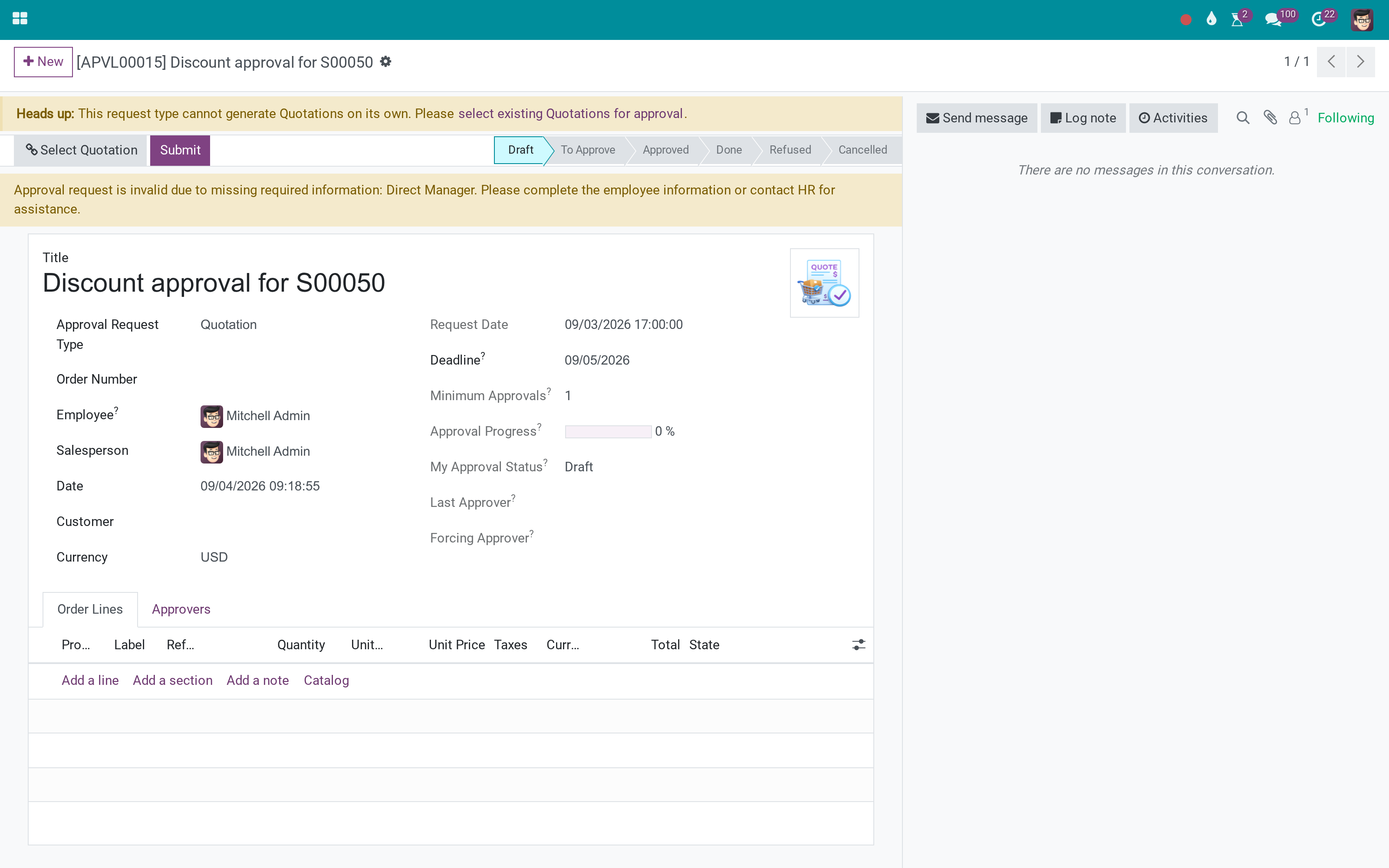
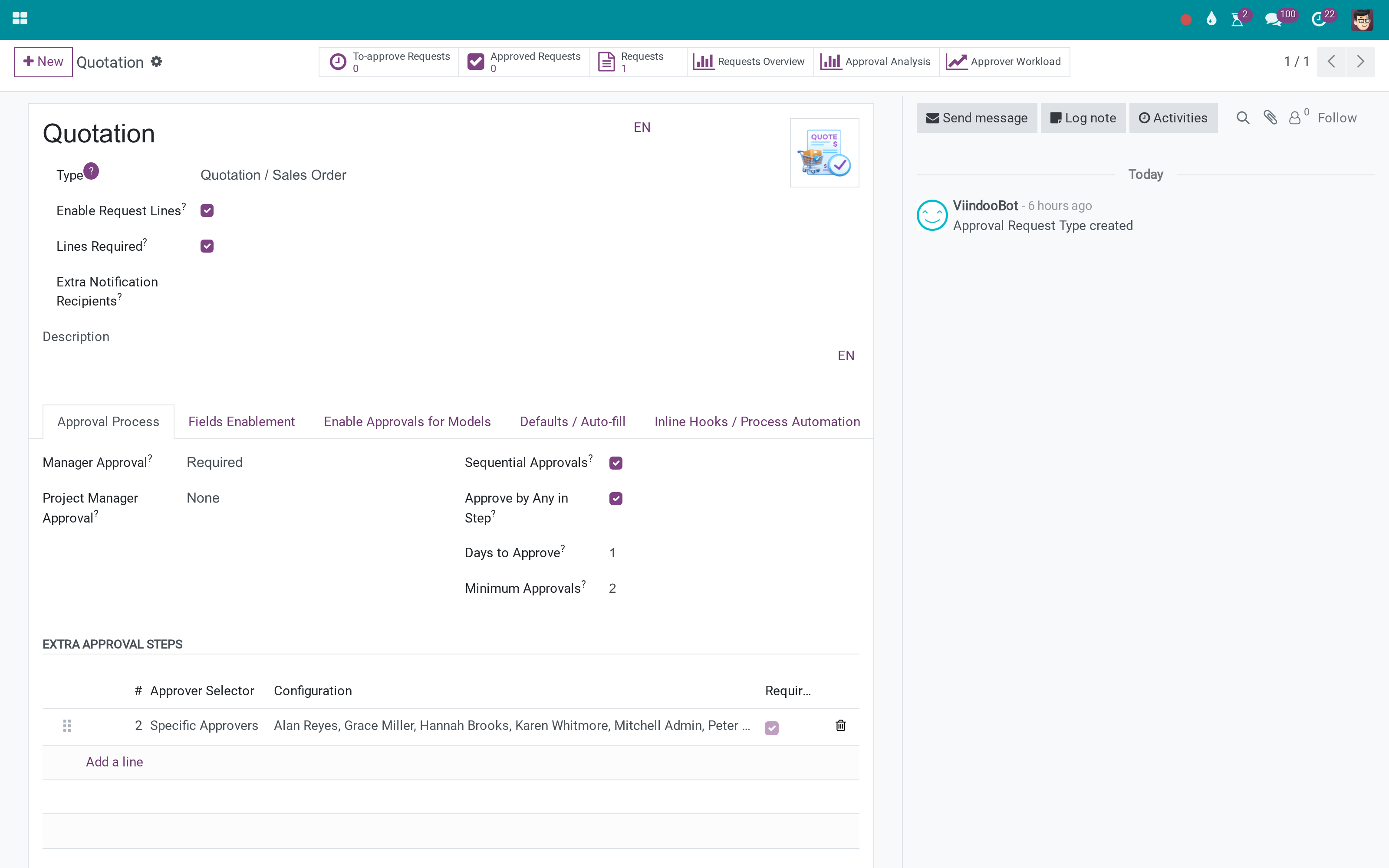
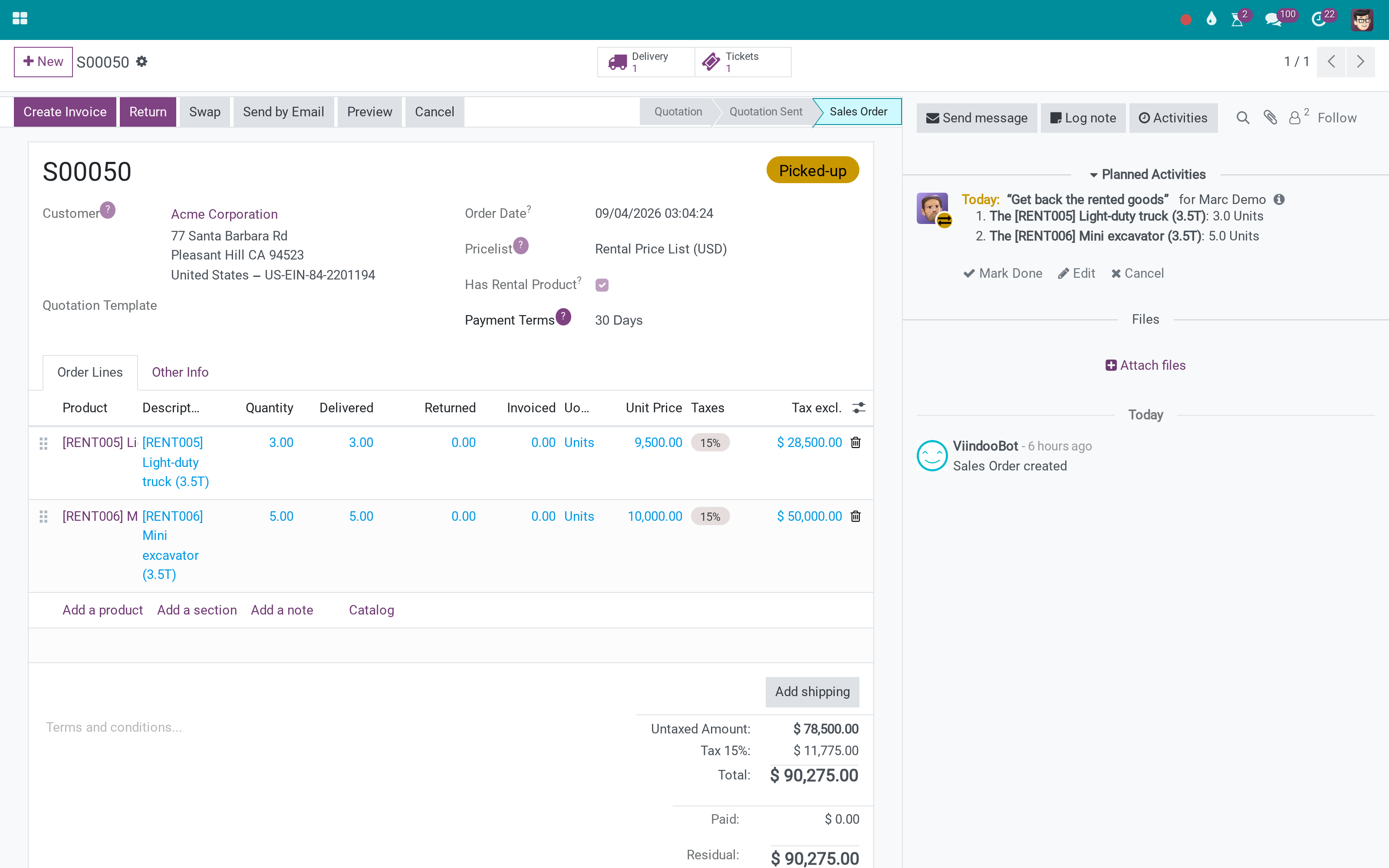
Three screens.
The request carries the order
The quotation, its lines and the team, on the request itself.
Configured per type
Which sales fields a request of this type carries, and whether they are required.
The order it is about
Unchanged - the approval sits beside it rather than inside it.
What You Get
Sale order, sale order lines and sales team on the approval request
One order or several, one line or several - per approval type
Field toggles: hidden, optional or required, header and lines
The order opens from the request
Works with sequential approvers, minimums and deadlines
Nothing changes about how quotations are made
More Screens
Everything below was taken on a database seeded with real business data, on this series - not a mock-up and not a screenshot from an older version.
Field toggles per type
What This App Does Not Do
Read this before you buy. Everything below is something the app deliberately leaves to another app or to you.
It carries the order into an approval route; the rule that triggers the route is your configuration.
Blocking is the approval engine's state on the document.
This is a bridge; the requests and routes come from there.
Which line is approved is explicit - the amount rule lives in the type.
Works Well With
Apps from the same stack, built to fit this one:
Sales and Project Approvals
When an approved order has to move a project too.
OmniApproval™ - Sales & ProjectsWho Should Use OmniApproval™ - Quote & Order Approvals?
Salesperson
Asks for the discount with the quotation attached.
Sales manager
Approves with the order and the line in view.
Finance
Sees which orders were approved as exceptions.
Administrator
Configures per type what the request must carry.
Frequently Asked Questions
What does OmniApproval™ - Quote & Order Approvals do?
Approval requests that carry the sale order, its lines and its sales team - and can create or reference the order the flow is about.
What does OmniApproval™ - Quote & Order Approvals not do?
It does not enforce discount limits. It carries the order into an approval route; the rule that triggers the route is your configuration. It does not block confirmation by itself. Blocking is the approval engine's state on the document. It needs OmniApproval. This is a bridge; the requests and routes come from there. Line-level approval is per line, not per amount. Which line is approved is explicit - the amount rule lives in the type.
Who is OmniApproval™ - Quote & Order Approvals for?
Salesperson: Asks for the discount with the quotation attached. Sales manager: Approves with the order and the line in view. Finance: Sees which orders were approved as exceptions. Administrator: Configures per type what the request must carry.
Which Odoo version and editions does it support?
Odoo 18.0 - Odoo Community, Odoo Enterprise, Viindoo Cloud. Upgrades to a newer Odoo series are a separate purchase for that series.
What does it depend on?
It installs on top of: viin_approval_account, sale_management. Odoo installs them with it.
How do I set it up?
Three screens.
What works well with it?
OmniApproval (viin_approval): The engine this extends. Sales Teams Advanced (to_sales_team_advanced): The teams and regions an approval can route by. Sales and Project Approvals (viin_approval_sale_project): When an approved order has to move a project too.
Can I try it before buying?
Yes - the Live Preview button at the top of this page opens a working database.
How do I get support?
Write to apps.support@viindoo.com with your Odoo version and the technical name viin_approval_sale; pre-sales questions go to sales@viindoo.com.
See OmniApproval™ - Quote & Order Approvals in Action
Live demo: v18demo-int.viindoo.com
Need help with OmniApproval™ - Quote & Order Approvals?
For questions, implementation support or a custom feature, contact Viindoo.
Pre-Sales & Partnership
sales@viindoo.comUpgrades to a newer Odoo series are a separate purchase for that series.
All Viindoo apps: Viindoo Apps
Technical Requirement
Changes log
0.1 - Latest on the 17.0 line
- Sales fields are available on request lines as well as on the header.
OmniApproval™ - Quotation Approvals
For salespeople, sales managers, approvers and approval administrators.
Note
Extends OmniApproval™ - see its documentation for roles, approvers, snapshots and every other engine feature. This guide only describes what the Quotation approval type adds.
Note
Builds on Sales and OmniApproval™ Accounting.
Overview
A quotation can be sent to the customer only after the right people have agreed to its price, discount and terms. The module adds an approval type named Quotation to every company, so that a salesperson submits a quotation for approval, an approver decides on it and the salesperson then confirms the quotation as usual.
| Role | What they do | Access right to assign |
|---|---|---|
| Salesperson | Prepares the quotation, submits it for approval and confirms it once approved. | A Sales access right |
| Sales Manager | Follows the quotations of the team. Holding the Sales Manager right alone gives no approval role. | Sales Manager |
| Approver | Decides on the requests that reach them. | Team Approver or Officer |
| Approval administrator | Adjusts the Quotation approval type. | Administrator (Approvals) |
The Team Approver, Officer and Administrator rights are described in the Roles and Access Rights section of the OmniApproval™ guide.
Setup (for the Administrator)
- Go to Apps, search for OmniApproval™ - Quote & Order Approvals and click Install.
- Open Approval > Configuration > Approval Types. Each company now has an approval type named Quotation, ready to use.
- Give each person the access right of their role under Settings > Users & Companies > Users.
The Quotation type asks the employee's manager for the first approval step and names no approver. Who approves, and in how many steps, is yours to decide: add approvers to the type as described in the Approvers section of the OmniApproval™ guide.
What the Quotation type adds
Only quotations that are still in the Quotation or Quotation Sent stage can be submitted for approval.
The request is filled in from the quotation:
| On the quotation | On the request |
|---|---|
| Order number | Order Number |
| Customer, salesperson and company | The same fields of the request |
| Order date | Date |
| Each line: product, section or note, unit of measure, quantity, analytic distribution, description | The same columns of the request lines |
| Each line: unit price, discount, taxes | Unit Price, Discount (%), Taxes |
The unit price, the discount and the taxes only travel from the quotation to the request: the request never changes them on the quotation.
The request lines show the Discount (%) column. The discount is applied exactly as on the quotation, so the total of the request equals the total of the quotation.
Using the Quotation approval
Submitting a quotation (Salesperson)
Quotation approvals always start from the quotation itself: the Quotation type does not create quotations of its own.
- Open the quotation and click Action > Get Approved.
- Check the approval type and the quotation shown in the Submit for Approval window.
- Click Create Approval Request.
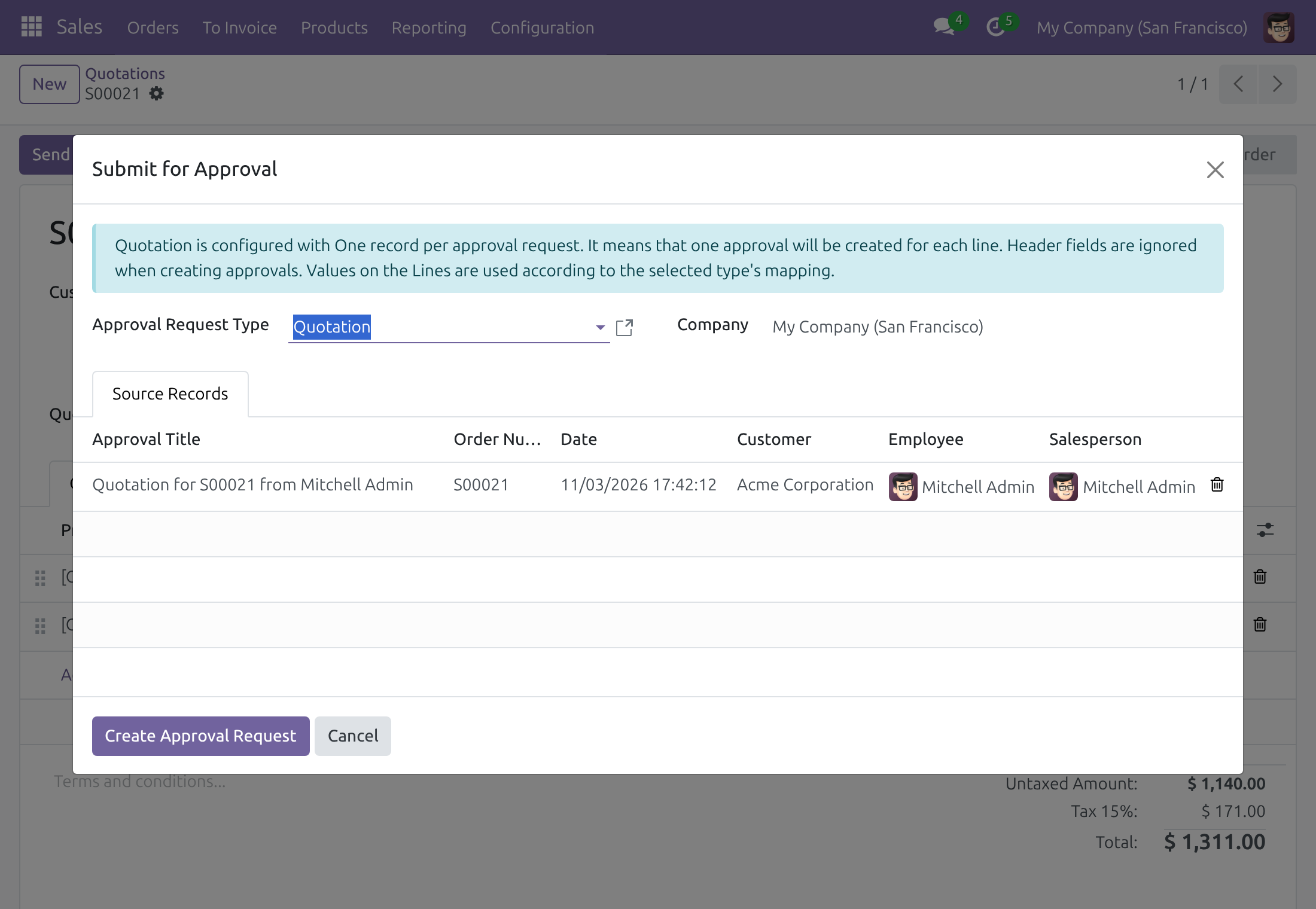
The request opens in Draft, with the quotation lines under Order Lines.
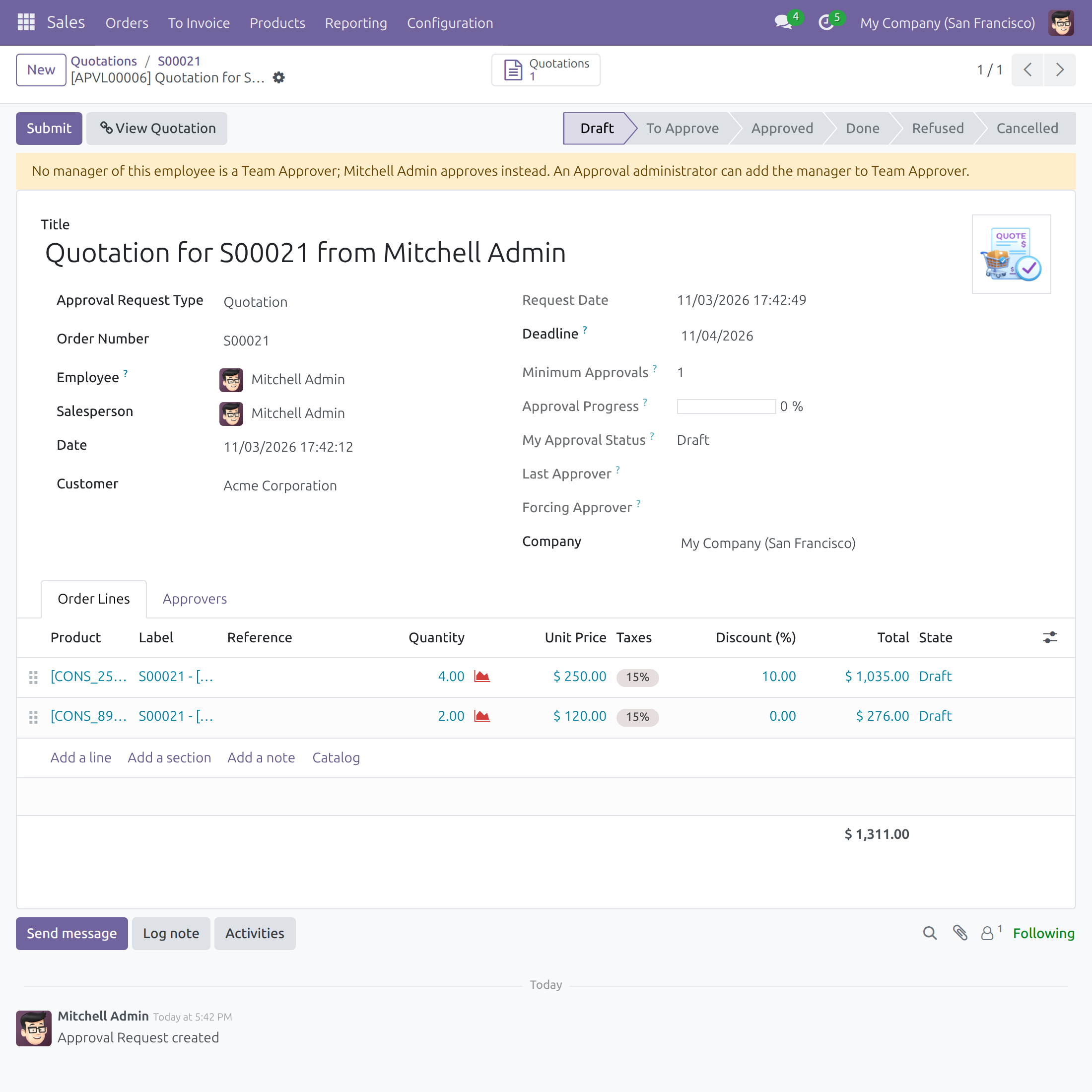
Click Submit to send it to the approvers. Approving, refusing and the other decisions work as described in the OmniApproval™ guide.
Confirming the approved quotation (Salesperson)
Once the request is approved, confirm the quotation with its usual Confirm button. Confirming the quotation changes its date, which is not a change to what was approved: the request records no note.
Approval never blocks Confirm by itself. See the Business Documents section of the OmniApproval™ guide to add a block.
Changes made after submission
If someone edits a line of the quotation after the request was submitted - for example its quantity or its discount - the request shows a warning and its chatter notes the change once, with the difference. Nothing is blocked and nobody has to approve again. The Snapshots and Diff section of the OmniApproval™ guide explains the comparison.
This software and associated files (the "Software") may only be used (executed, modified, executed after modifications) if you have purchased a valid license from the authors, typically via Odoo Apps, or if you have received a written agreement from the authors of the Software (see the COPYRIGHT file).
You may develop Odoo modules that use the Software as a library (typically by depending on it, importing it and using its resources), but without copying any source code or material from the Software. You may distribute those modules under the license of your choice, provided that this license is compatible with the terms of the Odoo Proprietary License (For example: LGPL, MIT, or proprietary licenses similar to this one).
It is forbidden to publish, distribute, sublicense, or sell copies of the Software or modified copies of the Software.
The above copyright notice and this permission notice must be included in all copies or substantial portions of the Software.
THE SOFTWARE IS PROVIDED "AS IS", WITHOUT WARRANTY OF ANY KIND, EXPRESS OR IMPLIED, INCLUDING BUT NOT LIMITED TO THE WARRANTIES OF MERCHANTABILITY, FITNESS FOR A PARTICULAR PURPOSE AND NONINFRINGEMENT. IN NO EVENT SHALL THE AUTHORS OR COPYRIGHT HOLDERS BE LIABLE FOR ANY CLAIM, DAMAGES OR OTHER LIABILITY, WHETHER IN AN ACTION OF CONTRACT, TORT OR OTHERWISE, ARISING FROM, OUT OF OR IN CONNECTION WITH THE SOFTWARE OR THE USE OR OTHER DEALINGS IN THE SOFTWARE.
