Auto-fill asset category on vendor bill
| Lines of Code | 390 |
| Technical name | to_account_asset_purchase |
| License | OPL-1 |
| Website | https://viindoo.com/apps/modules/19.0/to_account_asset_purchase |
| Read description for | v 13.0 v 14.0 v 15.0 v 16.0 v 17.0 v 18.0 |
| Required Apps | Invoicing (account) Purchase (purchase) Discuss (mail) |
| Included Dependencies | Assets Management Viindoo Base Accounting Foundation |

The asset category follows the product onto the vendor bill
When a bill is created from a purchase order, each line whose product has an asset category gets that category - so the asset is created on posting without anyone remembering.
Auto-fill asset category on vendor bill (technical name to_account_asset_purchase) is an Odoo 19.0 app for Odoo Community and Odoo Enterprise and Viindoo Cloud, built for accounts payable, fixed-asset accountant.
At a Glance
The facts of Auto-fill asset category on vendor bill, version 0.1, in one place. Published by Viindoo.
How It Works
Put the asset category on the product; bill the purchase order.
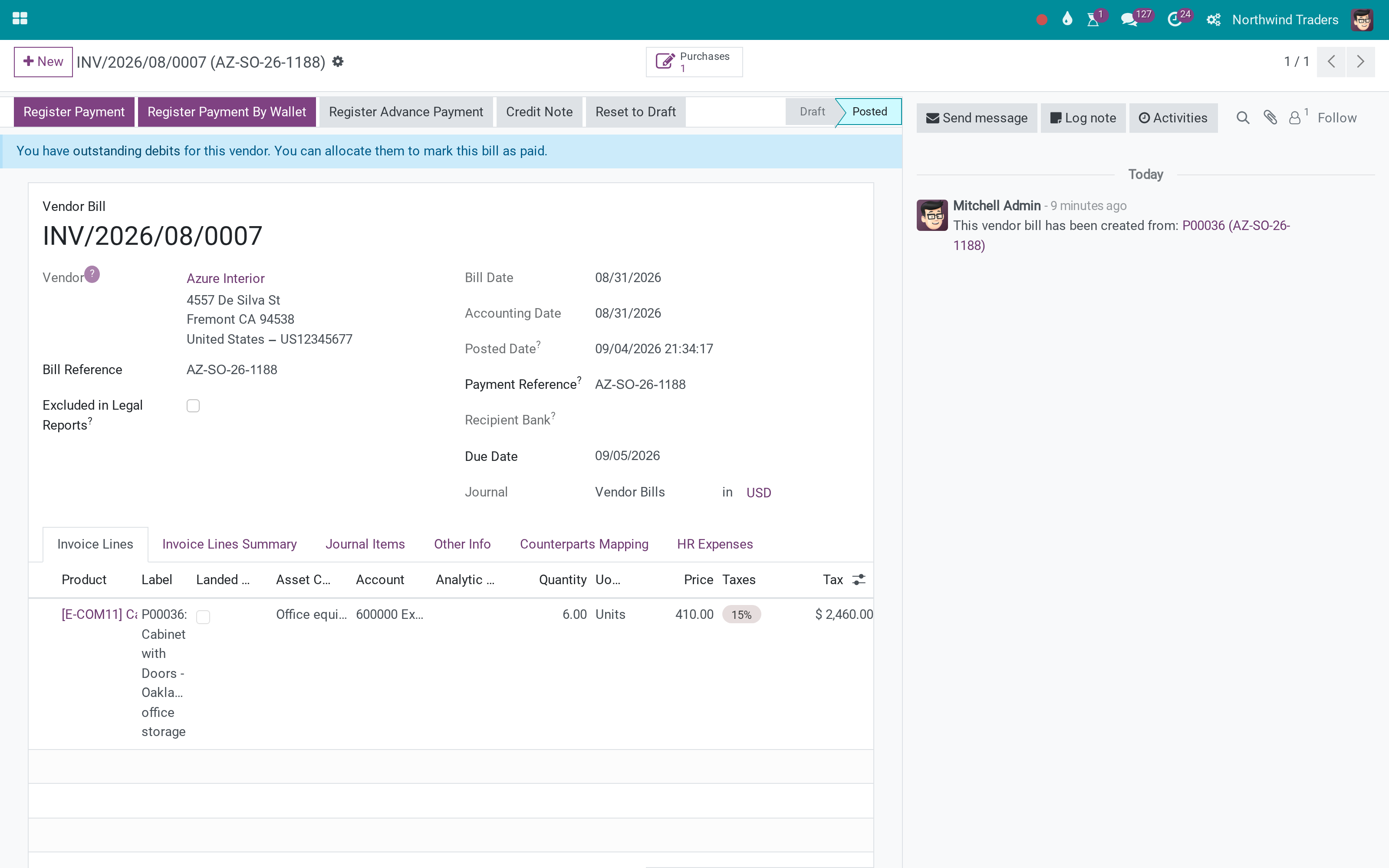
The bill
Cabinets for the Oakland office.
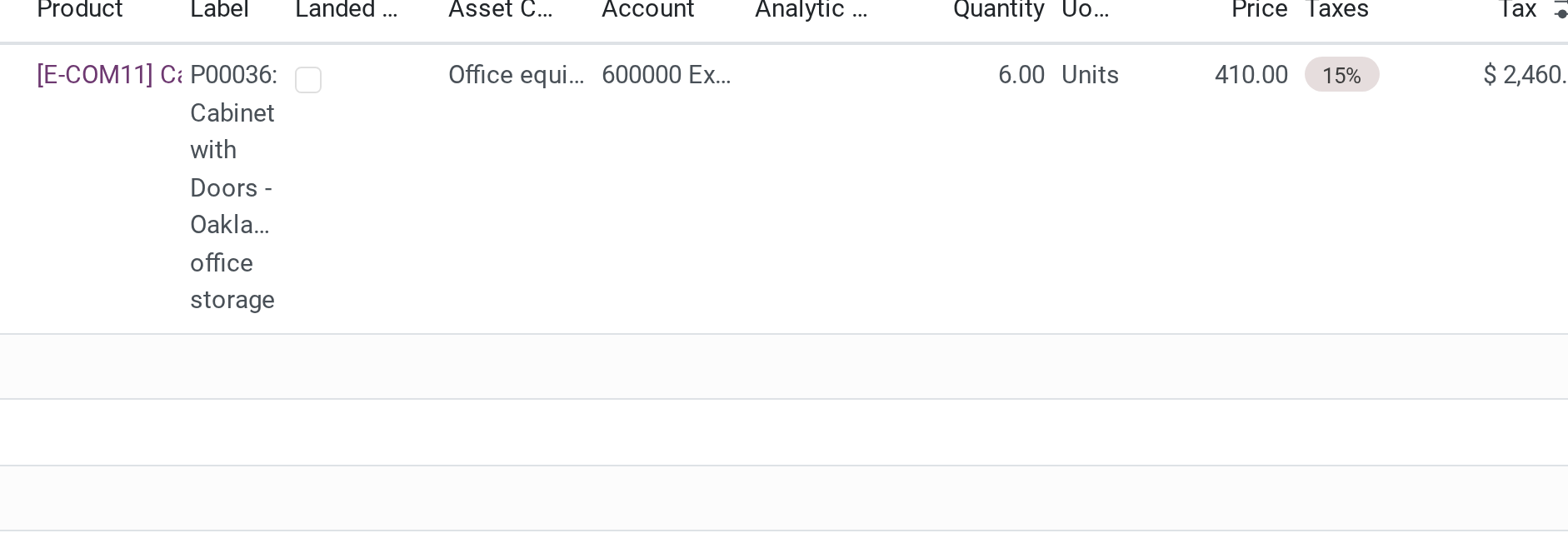
The lines
Office equipment and furniture, from the product.
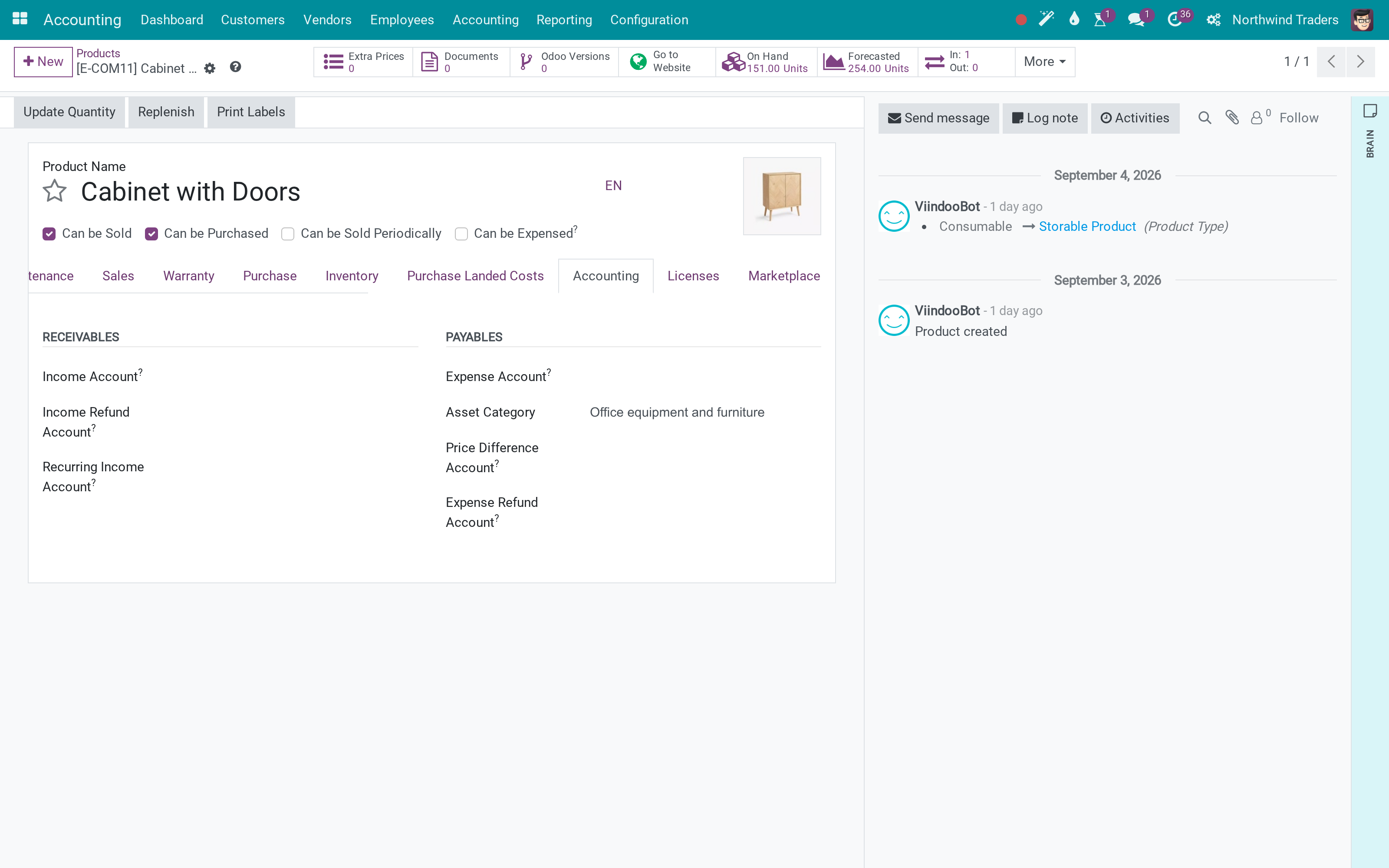
The product
Where the category lives.
What You Get
Asset category from the product on PO-based bill lines
Recomputed on bill auto-complete
Assets created on posting as usual
More Screens
Everything below was taken on a database seeded with real business data, on this series - not a mock-up and not a screenshot from an older version.
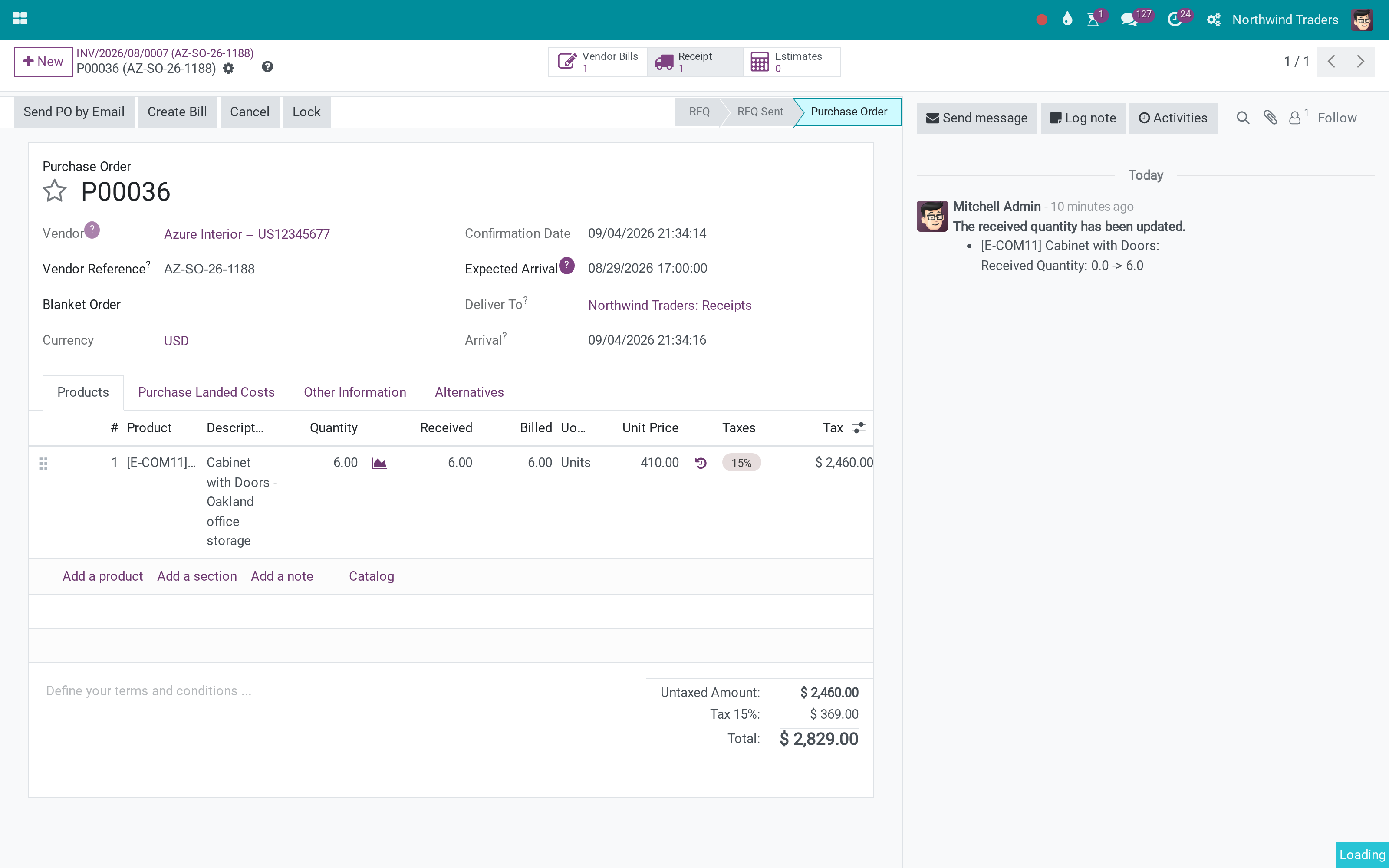
The source purchase order
What This App Does Not Do
Read this before you buy. Everything below is something the app deliberately leaves to another app or to you.
Manual bills use the product default.
Set it there.
Works Well With
Apps from the same stack, built to fit this one:
Who Should Use Auto-fill asset category on vendor bill?
Accounts payable
No category to pick.
Fixed-asset accountant
Nothing purchased slips past depreciation.
Frequently Asked Questions
What does Auto-fill asset category on vendor bill do?
When a bill is created from a purchase order, each line whose product has an asset category gets that category - so the asset is created on posting without anyone remembering.
What does Auto-fill asset category on vendor bill not do?
Only lines created from a purchase order. Manual bills use the product default. No category on the product means nothing happens. Set it there.
Who is Auto-fill asset category on vendor bill for?
Accounts payable: No category to pick. Fixed-asset accountant: Nothing purchased slips past depreciation.
Which Odoo version and editions does it support?
Odoo 19.0 - Odoo Community, Odoo Enterprise, Viindoo Cloud. Upgrades to a newer Odoo series are a separate purchase for that series.
What does it depend on?
It installs on top of: to_account_asset, purchase. Odoo installs them with it.
How do I set it up?
Put the asset category on the product; bill the purchase order.
What works well with it?
Assets (to_account_asset): Depreciation. Purchase (purchase): The orders.
Can I try it before buying?
Yes - the Live Preview button at the top of this page opens the module's own screen on a working database.
How do I get support?
Write to apps.support@viindoo.com with your Odoo version and the technical name to_account_asset_purchase; pre-sales questions go to sales@viindoo.com.
See Auto-fill asset category on vendor bill in Action
or use the Live Preview button at the top of this page
Need help with Auto-fill asset category on vendor bill?
For questions, implementation support or a custom feature, contact Viindoo.
Pre-Sales & Partnership
sales@viindoo.comUpgrades to a newer Odoo series are a separate purchase for that series.
All Viindoo apps: apps.odoo.com/apps/modules/browse?author=Viindoo
Technical Requirement
Changes log
0.1 - Latest on the 18.0 line
- Should be auto installed.
Installation
- Navigate to Apps.
- Search with keyword to_account_asset_purchase.
- Press Install.
Instruction
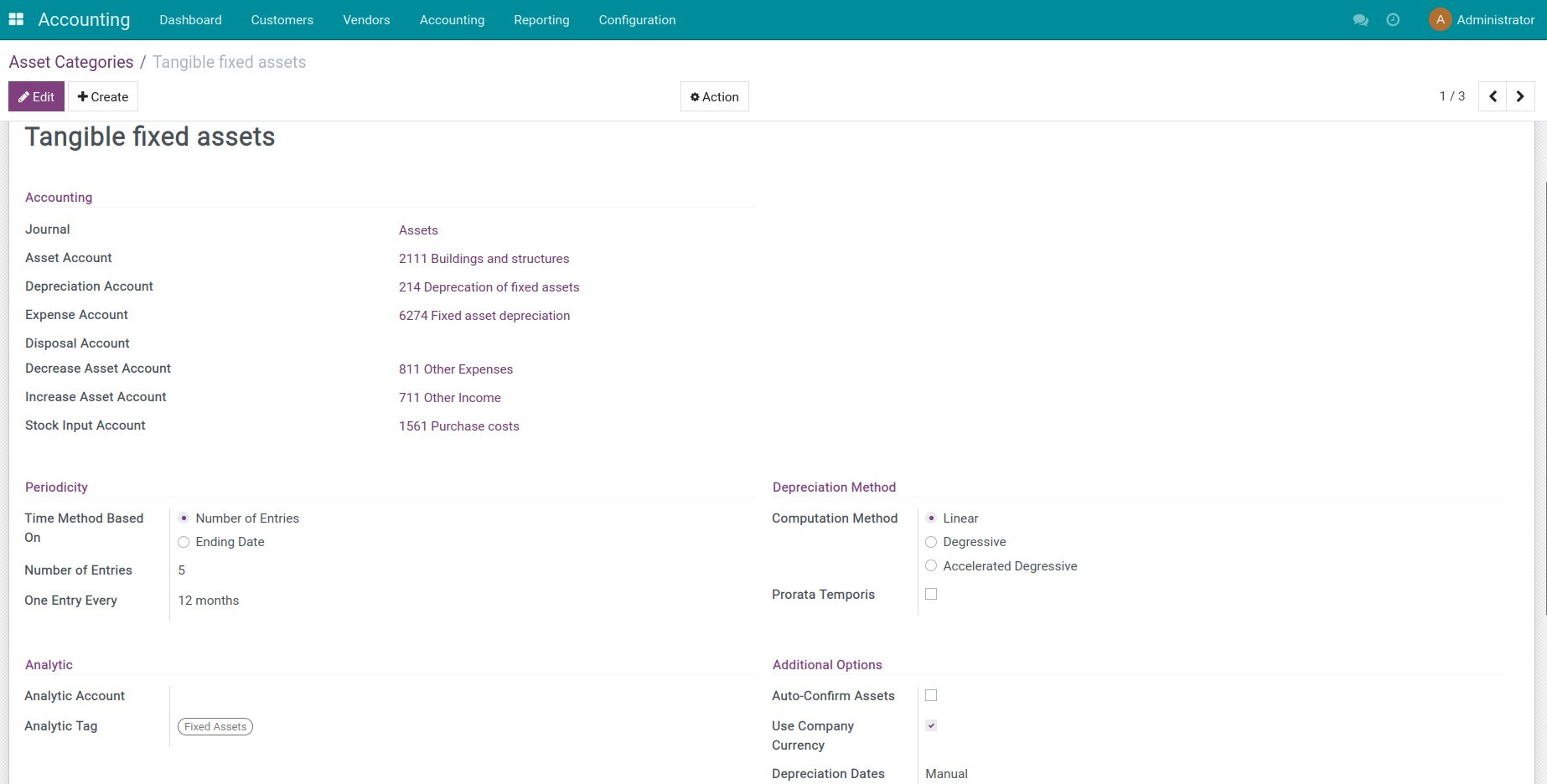
1. Create asset category and link with a product
Navigate to Accounting > Configuration > Asset Categories, press Create to create a new asset category.
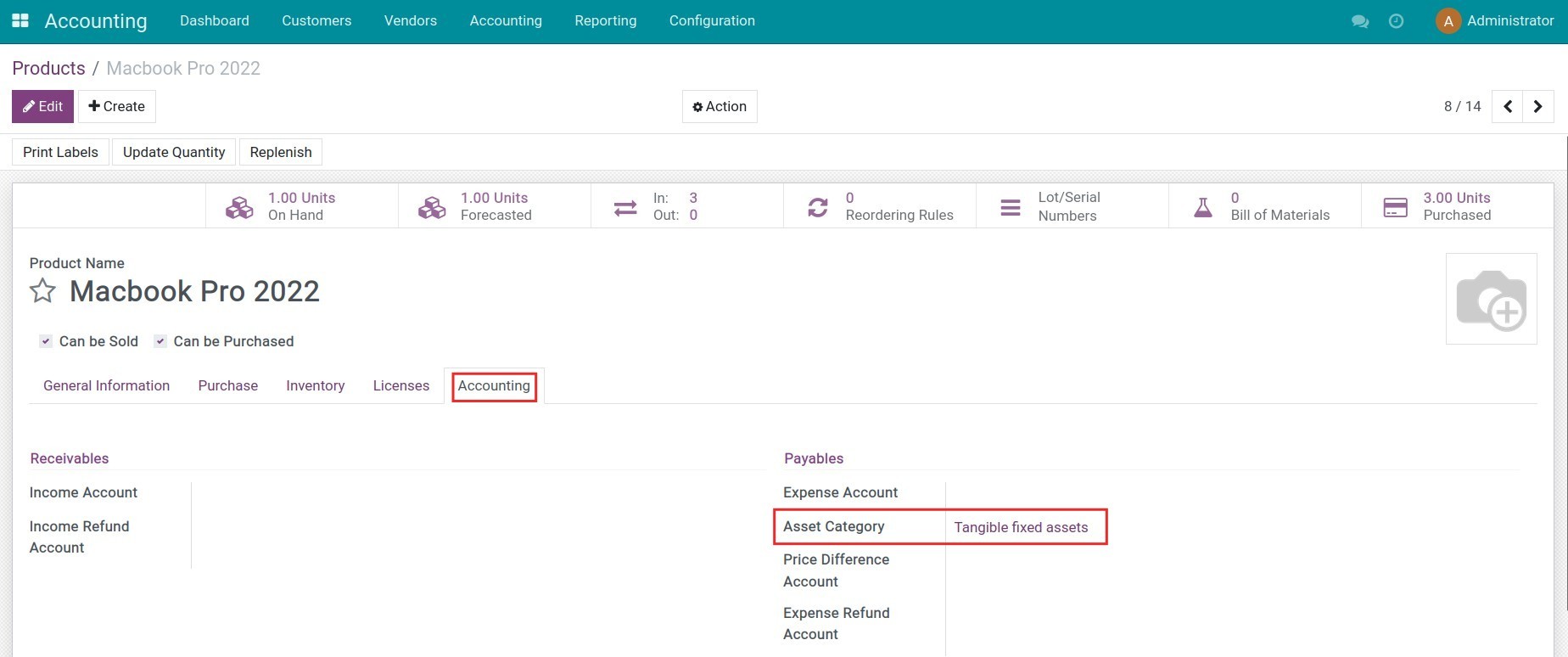
On the product view, select the suitable asset category for the product in Accounting tab.
2. Create a purchase order and receive products in the warehouse
Create a purchase order and proceed to receive products in your warehouse.
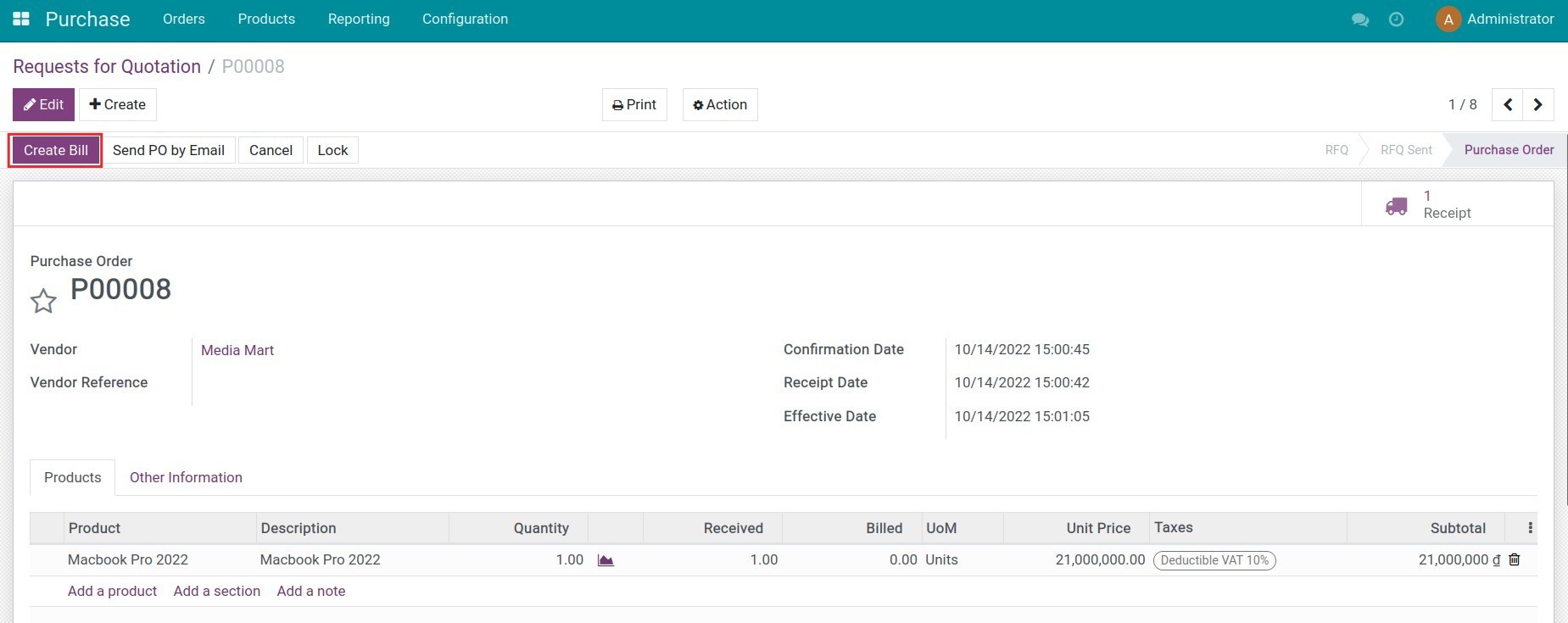
3. Create an invoice for the asset purchase order
On the purchase order view, press Create Bill to create a vendor bill.
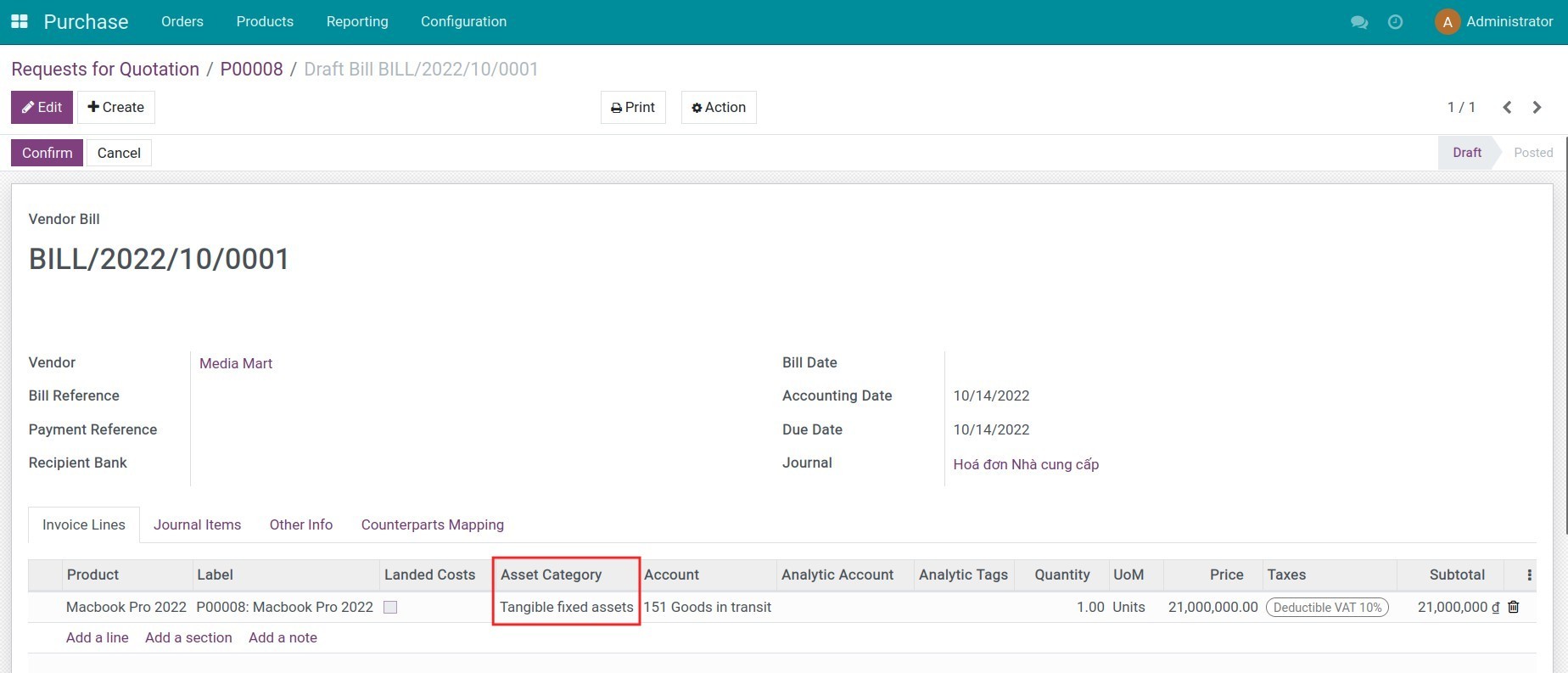
On the invoice line, the asset category configured on the product will be automatically recognized and displayed accordingly.
This software and associated files (the "Software") may only be used (executed, modified, executed after modifications) if you have purchased a valid license from the authors, typically via Odoo Apps, or if you have received a written agreement from the authors of the Software (see the COPYRIGHT file).
You may develop Odoo modules that use the Software as a library (typically by depending on it, importing it and using its resources), but without copying any source code or material from the Software. You may distribute those modules under the license of your choice, provided that this license is compatible with the terms of the Odoo Proprietary License (For example: LGPL, MIT, or proprietary licenses similar to this one).
It is forbidden to publish, distribute, sublicense, or sell copies of the Software or modified copies of the Software.
The above copyright notice and this permission notice must be included in all copies or substantial portions of the Software.
THE SOFTWARE IS PROVIDED "AS IS", WITHOUT WARRANTY OF ANY KIND, EXPRESS OR IMPLIED, INCLUDING BUT NOT LIMITED TO THE WARRANTIES OF MERCHANTABILITY, FITNESS FOR A PARTICULAR PURPOSE AND NONINFRINGEMENT. IN NO EVENT SHALL THE AUTHORS OR COPYRIGHT HOLDERS BE LIABLE FOR ANY CLAIM, DAMAGES OR OTHER LIABILITY, WHETHER IN AN ACTION OF CONTRACT, TORT OR OTHERWISE, ARISING FROM, OUT OF OR IN CONNECTION WITH THE SOFTWARE OR THE USE OR OTHER DEALINGS IN THE SOFTWARE.